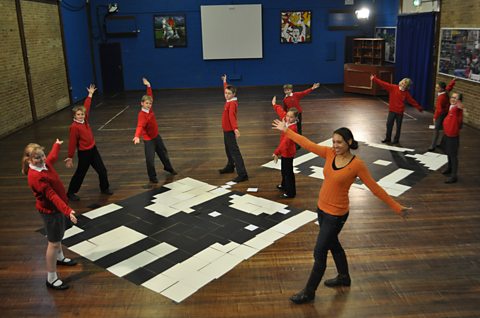
MINNA KANE:Often computers show us a world, whether it's an imaginary world in a fantastic console game, or the real world in a highly accurate racing simulator. So how do we create the virtual world? Well we have to create a computer program that describes how everything works.
MINNA KANE:I'm here with the pupils from The Ilsleys Primary School, and we're going to see if we can create a virtual car that can steer itself around a track. But first of all we need to get a track, so let's go guys!
MINNA KANE:'To draw our track, and to do our programming, we’re using Scratch, a free piece of coding software. All the commands you might need are laid out on the left-hand side. You then drag commands into the middle to write your program. On the right of the screen is the stage, and this is where we are going to put our car and our track.'
MINNA KANE:Great, so you've drawn your track. Now what are you doing?
STUDENT #1:We have to get a new sprite, so you have to go onto the file, and go to home, and choose one of these.
MINNA KANE:Okay.
STUDENT #1:And then if you right-click, you can resize it.
MINNA KANE:'This sprite represents the car. Once we've loaded our sprite, we're going to need a way of steering it round our track. We can tell where the track is, because it's a different colour to the background. Before we write our code, we're painting different colours on the left and right front corners of the car. We're going to use these colours in our program to try and stay on the track. We're writing a simple program using "if" conditions, and the colours on the front of the car. If the colour on the left side of the car touches the background colour, then the program knows that the car is heading off the track, onto the background. It's driving too far left, so we need to turn the car to steer it back on to the track. 'If the colour on the right of the car touches the background, 'then we need to turn the other way, so we stay on the track.'
MINNA KANE:Oh that looks awesome, but what's the code? What are you doing?
STUDENT # 2:Well what you have to do is put these colours in, this is the background.
MINNA KANE:Oh okay.
STUDENT #2:And then this is my left side of the car. So if it goes close to here, it should turn 15 degrees that way.
MINNA KANE:Okay so the lights are acting like sensors really, which help navigate the car round.
MINNA KANE:'To get all the way round the track, we repeat these commands over and over again. So we've placed them inside a forever loop. In this program, we're using a variable to store the speed of our car. We can change how fast the car moves, by changing the value of our variable.'
MINNA KANE:What do we do now?
STUDENT #2:Well we need to put speed in, and set the speed to…
MINNA KANE:A value.
STUDENT #2:10.
MINNA KANE:10, okay.
STUDENT #2:And then when I press the flag, it should go round.
MINNA KANE:Ah, oh yeah. Oh.
MINNA KANE:'Whoops, looks like this car's having trouble staying on the track.'
MINNA KANE:How come it's going off?
STUDENT #2:I'm not sure.
MINNA KANE:Shall we try a slower speed, so we've just got a bit more time to see it?
STUDENT #2:So let's try 5.
MINNA KANE:Yeah.
MINNA KANE:Cool. Oh it can handle it a bit better now.
STUDENT #2:Yeah.
MINNA KANE:Okay that's great.
MINNA KANE:Wow that's crazy, what's happened to your car?
STUDENT #3:I don't know.
MINNA KANE:You don't know? Why don't you try changing it to a lower speed, then it may work.
MINNA KANE:Okay guys, your times up. I want to know who has the best speed. So what did you get?
STUDENT #4:Seven.
MINNA KANE:Seven, anyone got higher than seven?
STUDENT #5:Me.
MINNA KANE:You? What did you get then?
STUDENT #5:I got 12.
MINNA KANE:12, let's see.
MINNA KANE:Oh wow, you did. That's fantastic. But you do have a rather simple oval track. Do you reckon if it was a bit complicated, with more twists and turns it would still be able to go 12?
STUDENT #5Yeah.
MINNA KANE:Yeah? I think you should give it a go.
MINNA KANE:Everybody's computer model was pretty similar, but by changing a parameter such as the speed, we're able to change how things work.
MINNA KANE:'I wonder if there are any other changes we could make to our program, to make the car behave differently. Why doesn't our program work at high speeds? And is there a way of making it work better? Perhaps you could try experimenting yourself.'
Video summary
A primary school class is using Scratch visual programming language to code instructions to make a car race around a track, helped by science presenter Minna Kane.
They first draw the track using paint tools, then pick a car “Sprite”, or icon, to instruct to drive around it.
They paint the headlights of the car different colours, and use IF/THEN commands in a FOREVER loop to tell the car to change direction if the headlight colour meets the background colour at the edge of their track.
In this way, they can tell their car to stay on the road.
They enter speed as a variable, and find that at higher speeds it is harder for the car to stay on the track, as the program has less time to react.
They lower the speed to debug the program.
Minna Kane wonders if speed is the only parameter that would affect the program like this, and encourages viewers to experiment themselves.
This clip is from the series Cracking the Code.
Teacher Notes
This could be used across a number of curriculum objectives: design and write programs that accomplish specific goals, including simulating physical systems, working with variables and to show the use of selection and repetition in programs.
It could also be used to demonstrate how a simple algorithm works.
This clip will be relevant for teaching Computing at KS1 and KS2 in England and Northern Ireland, Design and Technology KS2 in Wales and Computing Science and ICT at Second Level in Scotland.
Computing KS1 / KS2: Programming a robot crocodile. video
A class builds a Lego crocodile and use Raspberry Pi computers and the Scratch programming language to make it snap its jaws!
Computing KS1 / KS2: Creating computer generated visual effects. video
How visual effects in film and television use programs to control CGI behaviour.
Computing KS1 / KS2: Programming a computer game. video
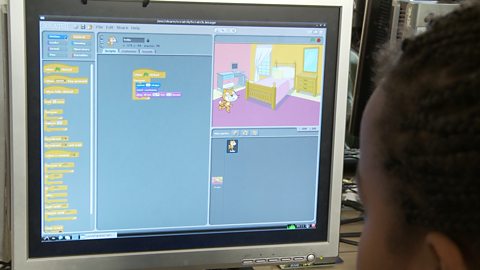
Schoolchildren create their own simple games using on screen sprites.
Computing KS1 / KS2: Programming a robotic toy car. video
A toy car is programmed to move between two locations on a town plan.
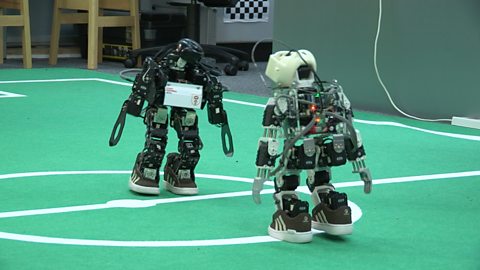
Computing KS1 / KS2: Programming robots to play football. video
How robots can be programmed to respond to what they see, by simplifying situations.
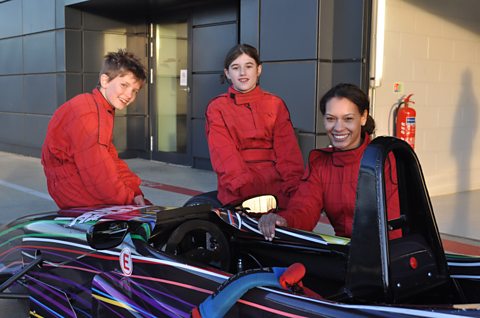
Computing KS1 / KS2: Simulating the experience of F1 racing. video
How realistic, computer-controlled racing simulators are used for training F1 drivers.
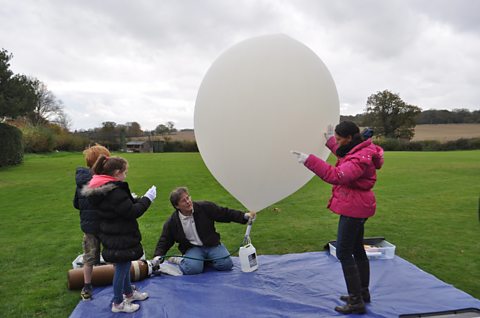
Computing KS1 / KS2: Programming a webcam. video
A small computer and a webcam are programmed to take high altitude weather photographs.
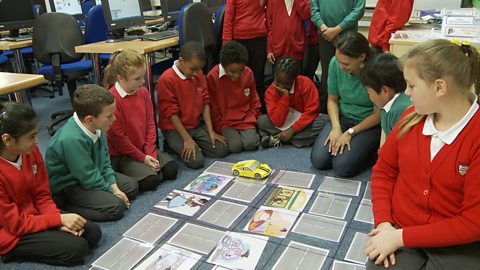
Computing KS1 / KS2: What are bitmap graphics? video
Schoolchildren create large bitmap images using black and white coloured squares.