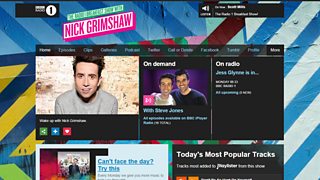
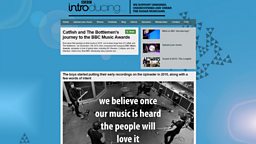
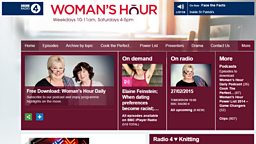
Navigation and Branding
iSite2
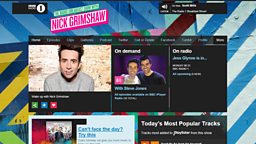
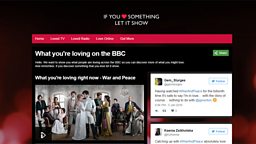
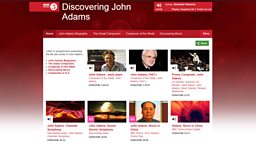
Navigation and branding are created and edited in the branding tool (see Branding Tool guide (BBC Desktop Certificate required)). However applying the navigation and branding to your /programmes page is done in iSite2. Once a branding ID has been added to a page you can make all future changes using the branding tool, there is no reason to edit the iSite2 form again.
You Will Need
- Programme ID (PID). This can be any PID, the branding will apply to that page and any children or attached article pages
- Branding ID (e.g. br-00019)
Before You Start
Go to the Programme Admins project in iSite2. If you do not have access to this group, please contact R&M.Support@bbc.co.uk.
See the guide to Programmes Options Forms for information on how to set up a new form.
Step-By-Step Guide
- Programme / Service Option form - Open or create a Programme /Service Option form for your PID.
- Apply Branding ID - Enter the Branding ID into the Branding ID field.
- Save and Publish - Select the Save buttonthen select the Publish button.
For more information: Download the Step-By-Step guide to navigation in iSite2.
Optional Functions
Removing the branding - Open the Programme / Service Options form for the PID. Delete the Branding ID from the Branding ID field. Save and Publish changes. The PID will now default to a branding applied on a higher level. In most cases the Network branding.
Step-By-Step Guide

Related Tasks
![]()
Programme Options Forms
How to create new Programme Options Forms
![]()
Branding
Creating collections in iBroadcast2.