Glitchy, intimidating, complex: Apple's changes to audio in iOS 7 - continued

Marc Settle
specialises in smartphone reporting for the BBC Academy
This is the conclusion of Marc Settle's blog about audio changes in iOS 7.
To start editing, touch the blue symbol half-way down on the right-hand side. Up until now only five seconds of your recording were visible, but now the entire length will be shown whether you’ve recorded 20 seconds or 20 minutes, with a red vertical bar at either end.
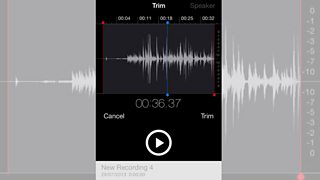
Move the red bar on the left with your finger, using the timecode displayed in bold, to roughly where you want your edited clip to begin; then let go, to mark the inpoint. Do the same with the red bar on the right, moving it left until it’s where you want the outpoint to be.
If you press play, the blue bar - which shows where you are in the recording - will move between the two points so you can hear how cleanly you come in and out. It’s unlikely your audio will be used without someone else listening to it and editing if before it’s transmitted, so you don’t need to get the inpoint and outpoint spot on: as the phrase goes, ‘leave it loose’.
The red bars don’t lock into place, so you can easily move them, either accidentally or deliberately. And you can’t fast-forward or rewind through your clip as you’re playing it. If you press play, you can only stop playing by hitting the pause button. And the only way to go back to the beginning is by listening to the end of your clip and then starting again. If you want to check the in and out of a three-minute interview, this could be very time-consuming - and it’s another argument for ‘leaving it loose’.
Once you’re happy with the inpoint and outpoint, hit ‘trim’:
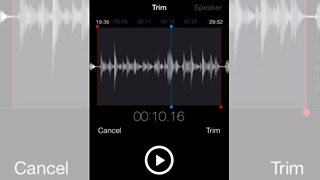
Here’s the welcome change I’ve already mentioned: you can either trim the original, which deletes permanently the bits either side of the section you want to keep, or you can ‘save as new recording’. In almost all circumstances, you’ll want to do the latter. Press this option and your original recording will be shortened, renamed to ‘name of original recording copy’, and it’ll be on screen. Listen back to this version and repeat if necessary.
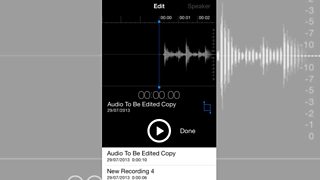
The process for renaming an edited clip isn’t the same as naming a new recording. You don’t get a pop-up box. Instead, you need to tap the file name of the edited clip, and again on the name once it opens up, delete what’s there, rename it, and then ‘return’ when done.
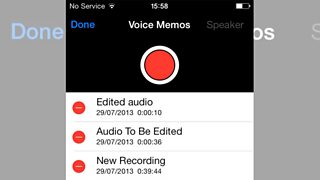
Tapping the screen once more will make both the original and the edited audio visible in the list of recordings. If you need to make a new one, just hit the big red button.
Tests with iOS 7 have also shown that the Voice Memo app struggles with editing recordings longer than 45 minutes or so. There’s no problem recording audio to that length or longer, but when trying to edit it the app becomes very laggy and unresponsive - again, something which didn’t happen in iOS 6. Another improvement for the worse?
In conclusion, the whole interface for Voice Memos is more complex, even intimidating, for the less tech savvy to use. Yet, paradoxically, the app doesn’t do many things which other apps can do (such as removing a central portion of audio and allowing the remainder to be joined together).
It will surprise me if as many journalists continue to use the app as do currently: the case for using replacement audio apps remains very strong.
As a footnote, there’s one other audio aspect worth highlighting - FaceTime Audio. This is Apple’s challenge to Skype, Viber and other high-quality audio calling services. Rather than making a phone call, for which the costs to overseas numbers remain high, the option of connecting over wi-fi or 3G is hugely attractive, and this is where Face Time Audio comes in. One test call I did provided good quality audio but, as with similar VOIP services, it’s very much subject to the strength of your 3G or wi-fi connection. Even if you can make the phone call, it’s not obvious whether it can be recorded on the phone itself in broadcast quality, or even how a call can be routed from the iPhone for transmission.
Previous posts by Marc Settle about iOS 7 looked at the operating system and its stills and video functions.
