iOS 7 for journalists: video and photos

Marc Settle
specialises in smartphone reporting for the BBC Academy
In a previous post I looked at the overall changes Apple has introduced in iOS 7 that are likely to be of interest to journalists. Here I’ll consider in detail the two functions that journalists use most: video and still photos.
It’s worth emphasising at the outset that a lot of third-party apps do many more things better than the pre-installed iOS camera app. But even so many journalists and others are content using the default apps provided on the device.
It’s indicative of changes to how the app itself works. The way you change from mode to mode is new, with a swipeable carousel of options starting with video,then photo,then square and finally pano for (panoramas). I’ll go through them in turn.
Video
Many of the fundamentals of the video mode in iOS 7 echo those of iOS 6, although they look slightly different. You still tap the screen to adjust the focus and exposure, press and hold to lock them, and, frustratingly, you still can’t hear the audio while recording video - a function which is available through apps like FilmicPro or VideoPro.
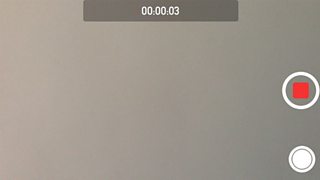
As for the changes, the button for selecting the light has moved more centrally, as has the button to swap between the front and back-facing camera. Both sit either side of the clock showing the duration of the clip you’re recording.
The new panel of controls on the right fades away once you start recording and leaves a screen mostly clear of icons. The only ones which remain are the duration, the red start/stop button and a white circle which takes photos while a video is being recorded (not on all models, though; only iPhone 5, 5s and 5c).
The old adage that “the best zoom you have is your own feet” may no longer apply when it comes to iOS 7 and video, at least for iPhone 5, 5s and 5cowners. Previously, iOS devices haven’t been able to zoom at all when recording video, so the advice to journalists has always been “get closer to the subject if it’s safe to do so”.
You can now place two fingers on the screen and expand them to zoom in up to three times closer, and pinch them closer together to zoom back out - just like zooming for photos. Or slide the fader which appears on-screen higher or lower. But it can still result in shaky recordings, so a tripod is essential. But being able to zoom opens up interesting new possibilities for a journalist.
There’s another tweak which owners of iPhone 5 and above can benefit from: slow-motion video. Whether any journalist would want to take advantage of this in their day-to-day reporting is another question entirely.
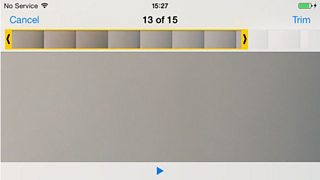
The process for editing remains broadly similar. The design of the trim handles has changed from two vertical lines at either end of the trim window to a single arrow at either end, but the method of selecting the chunk you want (go into ‘trim mode’ by touching one of the arrows, move the handles to mark the rough in and out points) remains the same.
The maximum duration of a video which can be sent in an email remains 54 seconds, but there are two new sharing options: you can post a video straight to Facebook or upload it direct to Vimeo. Videos can also be shared within a text message or iMessage, or via YouTube.
Photo
It’s a similar position with photos, in that the functionality remains broadly the same with a few added tweaks, while the design is a bit different.
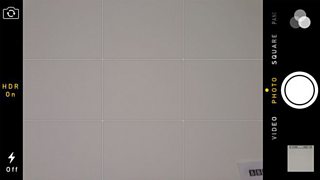
Again, with the iPhone horizontal, the flash button has dropped from the top left to the bottom left, while the ‘options’ button which was at the top in the middle has vanished altogether. Instead, HDR - High Dynamic Range, combining three exposures into one -has become its own option on the left in the middle, switching from yellow to show ‘on’ and white to show ‘off’. The way you turn the rule-of-thirds grid on or off is now a little more complicated as it’s not displayed on the screen any longer. Instead you have to go into ‘settings’ and find ‘photos and camera’: near the bottom is the grid toggle on/off button.
The big change to photos in iOS 7 is something most journalists won’t want to be using very often - and even if they are tempted there are many better methods in other apps. Apple has added a number of filters to change how your photo looks. If you have an iPhone 5 or iPod Touch (5th Gen), you can use filters while you are taking a photo; other devices can only add a filter to a photo once it’s been taken.
Clearly, in news a filter will have limited uses in most circumstances. The filter pack can be activated by pressing the three overlapping circles in the top right, and you’ll see small images of how a filtered photo would look.
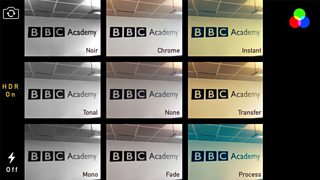
If there’s a reason to use a filter, tap the one you want to use and take a picture. It looks like there are nine to choose from, but in fact there are only eight since the image in the middle is ‘none’ (what the photo would look like with no filter). You can also touch this ‘none’ option to go back to unfiltered mode.
I’m not convinced the filter option will get much use in iOS 7 by mainstream journalists, and even if you do the eight provided by Apple are not the most exciting. Third-party apps such as Camera+ or Alt Photo offer a much better range.
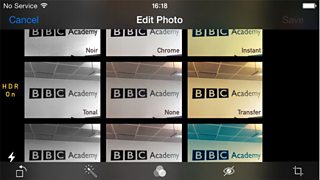
The filter options have also been added to what you can do to a photo once you’ve taken it. From your camera roll, select a single image and tap ‘edit’, and underneath the picture will be five choices, up from four in iOS 6 - rotate, auto-enhance, filters, red-eye removal, and crop.
One addition when it comes to sending photos is that they can now be posted directly to Flickr, whereas before they had to be brought into that service via its app.
Square
A number of journalists are posting photos on Instagram, which predominantly displays square images (the app NoCrop will actually enable an image of any shape to be added to Instagram) and that’s what the new Square option does in iOS 7. The rest of the way the camera works in Square is the same as in the normal mode. This does mean though that there’s no way to upload directly to Instagram; you’ll still have to open the app and bring the photo in that way. It doesn’t matter whether you hold the camera vertically or horizontally, and the filter options can be used if desired.
Pano
The last option is Pano(rama), which activates taking a widescreen 240-degree view (again, not on iPhone 3GS or 4).
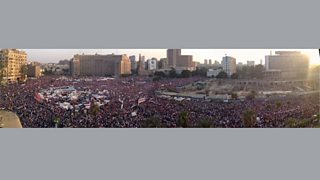
The picture above was taken by BBC correspondent Aleem Maqbool in Cairo a few months ago.
Hold the iPhone vertically and pan slowly to take a wide picture; hold it horizontally and pan up to take a ‘tall’ photo. With this option you can’t use the filters. Again, there are many third-party apps which I think do it better than the Apple version. As its name suggests, 360 Panorama doesn’t stop at 240 degrees but instead captures the whole of the world around you - an effect also possible using apps like Photosynth or DMD.
For journalists lucky enough to get hold of the new iPhone 5s, there are a number of extra functions for the still camera, but, as I’ve not been able to try these out myself on the new device, all I can do here is report on others’ reports and add a few thoughts of my own.
The camera’s sensor is 15% larger, with each pixel bigger than before to let in more light and (in theory, at least) produce a better photo. The camera’s software, optimised to work with iOS 7, will also do an automatic series of adjustments like white balance, exposure and focus.
There’s a new ‘burst mode’ - hold down the shutter button and it’ll take 10 shots in a second - great for ‘capturing a moment’ when your reactions might not be fast enough otherwise. The phone then apparently chooses the best shot of the bunch, so you may end up with fewer images of friends with their eyes closed. The 5s sports a two-tone flash which Apple claims leads to more natural-looking results in low light.
In summary, the tweaks and changes to photo and video in iOS 7 speak more of evolution than revolution. What will be even more interesting to see is how third-party apps take advantage of the new operating system to update their offerings. But underneath it all remains this truism: while a good camera and fancy lens can help, the best still images and video recordings are the ones where thought has gone into both the composition and the exposure of the scene in front of you.
How tempting is iOS 7? A guide for journalists
In a final post I look at the changes in audio in iOS 7.
Smartphone journalism with iOS 6: Video
