Glitchy, intimidating, complex: Apple's changes to audio in iOS 7

Marc Settle
specialises in smartphone reporting for the BBC Academy
In previous posts I have looked at Apple’s iOS 7 operating system as it might affect journalists, and specifically how the stills and video functions have changed. Here I will look at audio, as the third main function that journalists are likely to be interested in.
It’s a subject barely covered in most reviews of iOS 7, but here’s the punchline: Apple has made things worse, frankly. The native audio app which has long been very simple to use has changed dramatically and not in a good way. It’s less intuitive, it’s glitchy and it’s intimidating, while it remains limited in scope.
On the plus side, Apple has almost doubled the length of audio files which can be emailed, up from eight minutes to 15. On the down side, the way you can share the audio recorded on Voice Memos remains hugely limited: from the device itself, the only sharing options are email, message or AirDrop. You can’t upload your audio directly to any cloud service, nor can it be sent to audio sites such as SoundCloud or AudioBoo. Similarly, there are no options to change the format in which the audio is recorded. It remains m4a with no switch to record in other more commonly used formats such as MP3 or WAV.
The recording interface has been radically refreshed with the giant microphone ditched in favour of a visible ‘wave form’ of peaks and troughs which you see grow as you record more audio.
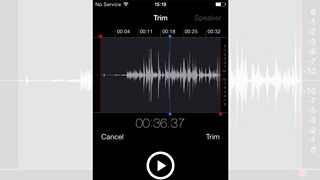
This echoes the design of a number of third-party apps such as ISaidWhat, Pocket WavePad or Rode Rec.
When you open up Voice Memo it’ll look like this:
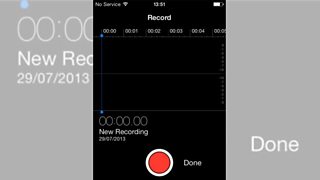
Press the red circle to start recording and you’ll see the audio waveform grow.
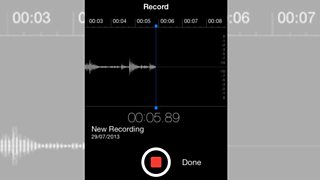
The audio only gets added to the left of the blue line in the centre of the screen. On the far right is a scale, which is the new version of the VU meter. Aim to keep the audio no higher than -2 - otherwise it distorts. There’s still no way to adjust the level of audio being recorded beyond getting closer to or further from the source of the sound.
And there’s no pause button as such: if you need to pause your recording, tap the red recording button again. If you want to continue, simply tap it again. If you want to stop, press done to the right of the recording button.
Once you’ve finished recording you can rename your audio within Voice Memos using the box which pops up once you’ve pressed done.
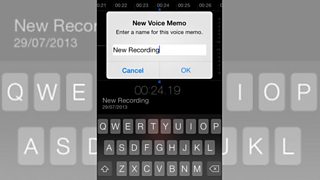
Click ok and the next screen shows you a list of all the recordings you’ve made. If you accidentally click ‘cancel’ instead of ‘ok’, your recording still gets saved but with no title - just something along the lines of ‘new recording 2’.
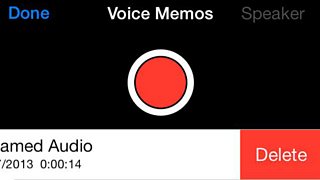
To delete a recording, touch ‘edit’ in the top left-hand corner of this screen, select the audio you want to get rid of and click ‘delete’. But bear in mind there is no undo option!
If you want to send the audio without any editing, tap the desired audio and in the bottom left you’ll see a box with an upward arrow.
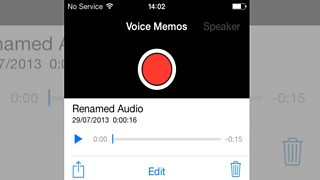
Click that and you’ll be presented with the sharing options available to you, such as message or email. (You can also delete your audio at this point by clicking the bin.)
Clicking email embeds the audio into an email where sending it is the same process as in iOS 6 - with one major difference. Previously audio files were limited to eight minutes duration. This has now nearly doubled to 15 minutes.
That’s the good news.
The bad news is that one useful aspect of audio in iOS 6 seems to have vanished from iOS 7 Voice Memos: if you attempt to email a recording longer than the maximum you are not prompted to take a smaller chunk. This could catch out an unwary journalist, and potentially even an interviewee. iOS 7 lets you embed much longer m4a files in an email, and seems to send it. The rather significant downside is that the email won’t ever arrive.
Many journalists within the BBC, and no doubt elsewhere, use Voice Memos with contributors for what are known as Simul Recs - where the guest is interviewed on one phone line but at the same time they record their own answers on an iPhone and then send that part by email. If they send more than 15 minutes and then delete the original recording, the quality version of their answers will be lost for good. The best advice would be to limit audio for email to less than 15 minutes - or use an alternative audio recording app such as Voice Record HD.
One drawback of Voice Memos in iOS 6 which has been changed for the better was that editing audio was destructive - in other words, once you’d edited down your audio you no longer had the original as it had been overwritten. This has thankfully been changed in iOS 7 so that you can edit and ‘save as new clip’, which is great for journalists who want to send shorter audio back to the newsroom without losing the rest of what they’ve recorded.
To start the editing process, touch the name of the audio file you want to edit and then ‘edit’ on the bar which appears underneath.
Your audio will be presented on a screen which looks like this:
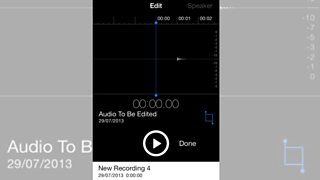
To listen back to it, press the circle with the triangle in it and the audio will play. Pause the audio by pressing the same button. While it’s paused you can swipe left and right to move very quickly from one part of the recording to another.
You can’t make any markings on the screen, so all you can do is make a (mental) note of the time code of your inpoint and your outpoint. There’s no ‘scrub’ function, so you can’t listen back at speed, and the only way to skip forward is by pausing and moving the wave form.
This blog post continues here.
