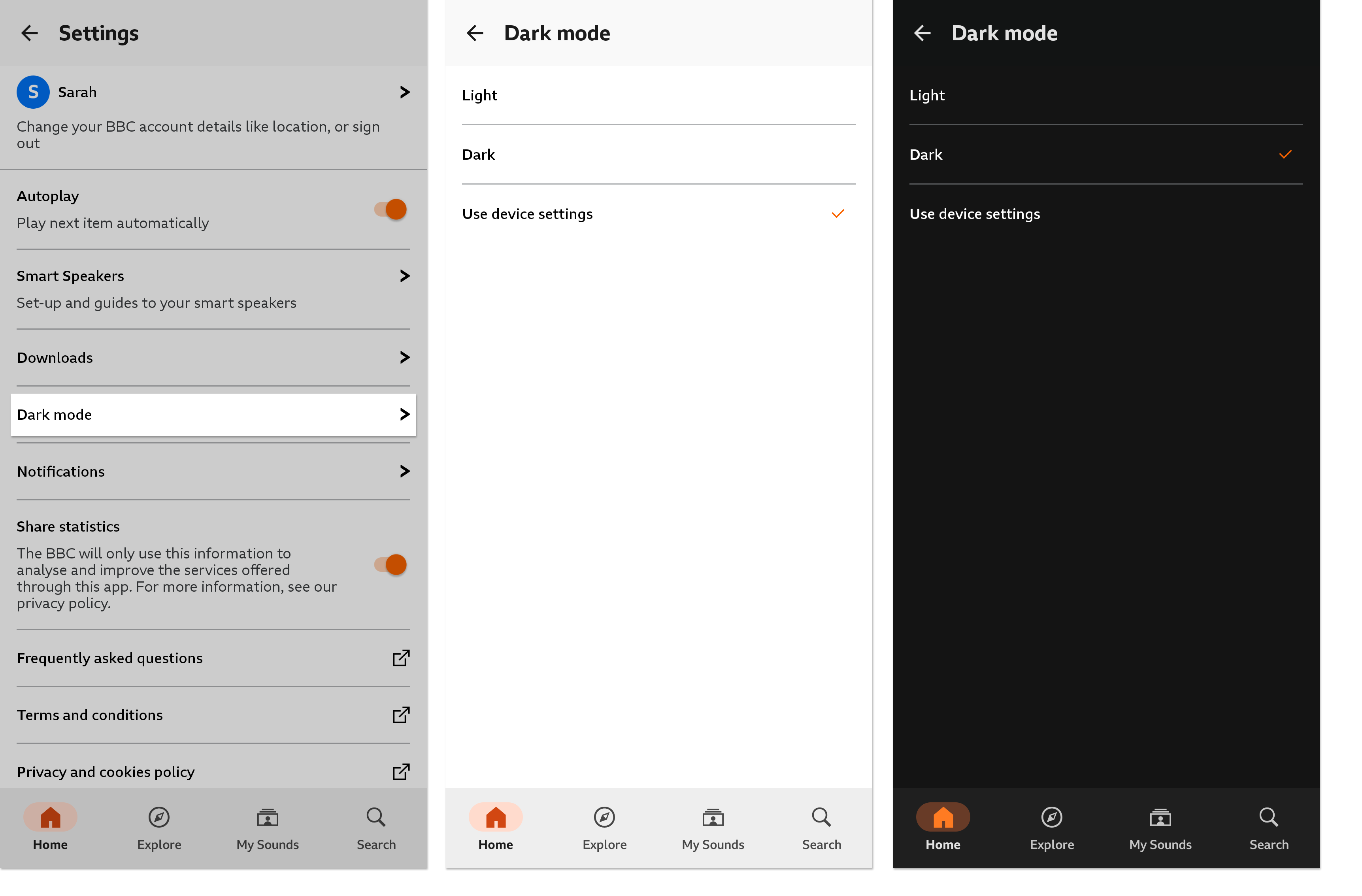
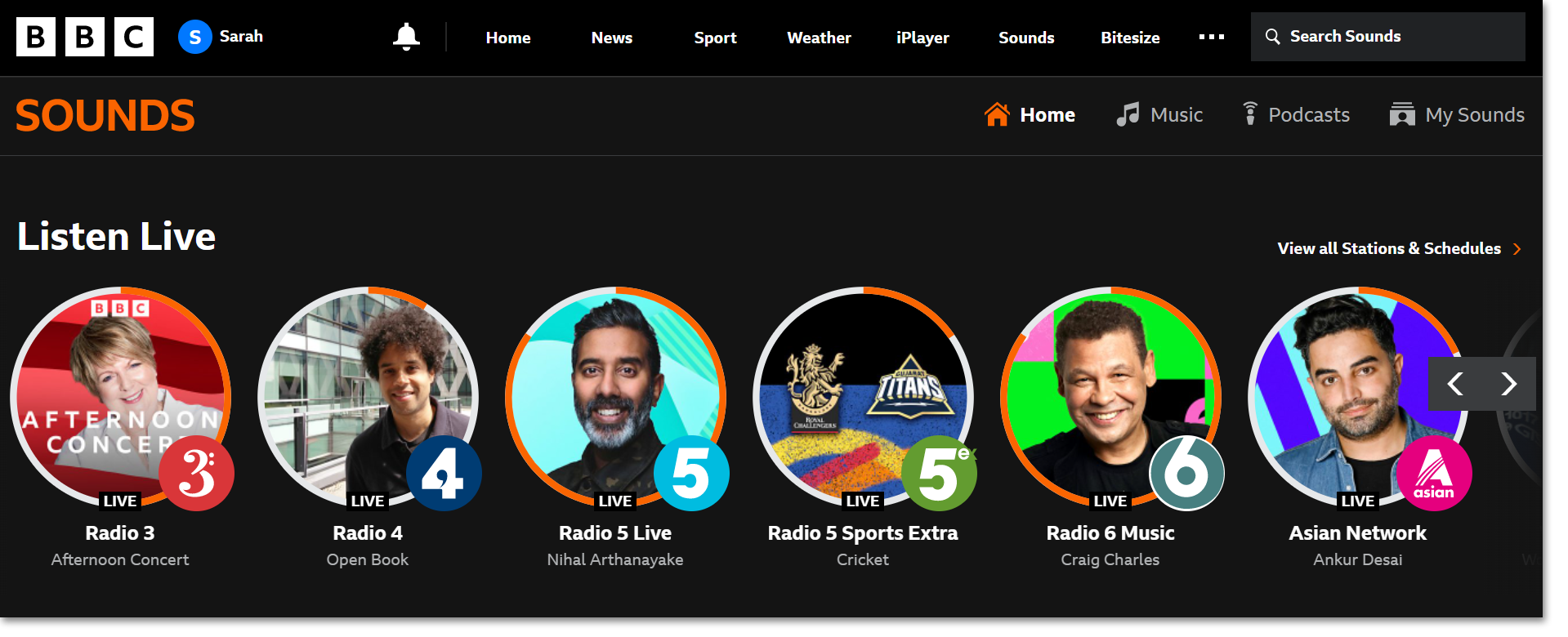
You now have the option of switching the interface of the BBC Sounds website and mobile/tablet app from dark text on a light background to light text on a dark background.
How do I switch to dark mode?
On the website
The light or dark mode is based on your device system settings. How you access those device settings depends on your operating system:
Mac
Settings > General > Appearance > Dark Mode (or you can choose 'Auto' if you want your system to schedule when dark mode is turned on)
iOS device
Settings > Display & Brightness > Dark (or 'Auto' if you want your system to schedule when dark mode is turned on)
Windows
Settings > Personalisation > Colours > Change the 'Default Windows mode' to 'Dark' (or 'Custom' if you'd like to customise your light/dark settings)
Android device
Settings > Display > Advanced > Set 'Dark Theme' to 'on' (or use 'Schedule' to customise your light/dark settings)
It's also possible to set dark mode within some browsers.
On the mobile/tablet app
- Head to the homepage and tap on your initial on the top right corner
- Tap 'Dark mode'
- Toggle between 'Light,' 'Dark' or 'Use device settings.'