Found an episode or clip you'd like to listen to later? Bookmark it so you can go back to it when you're ready.
If you need help removing bookmarks, have a look here
On the website
Find the programme that you're interested in and view the episode list. You'll find the option to Bookmark each episode under the image and title.
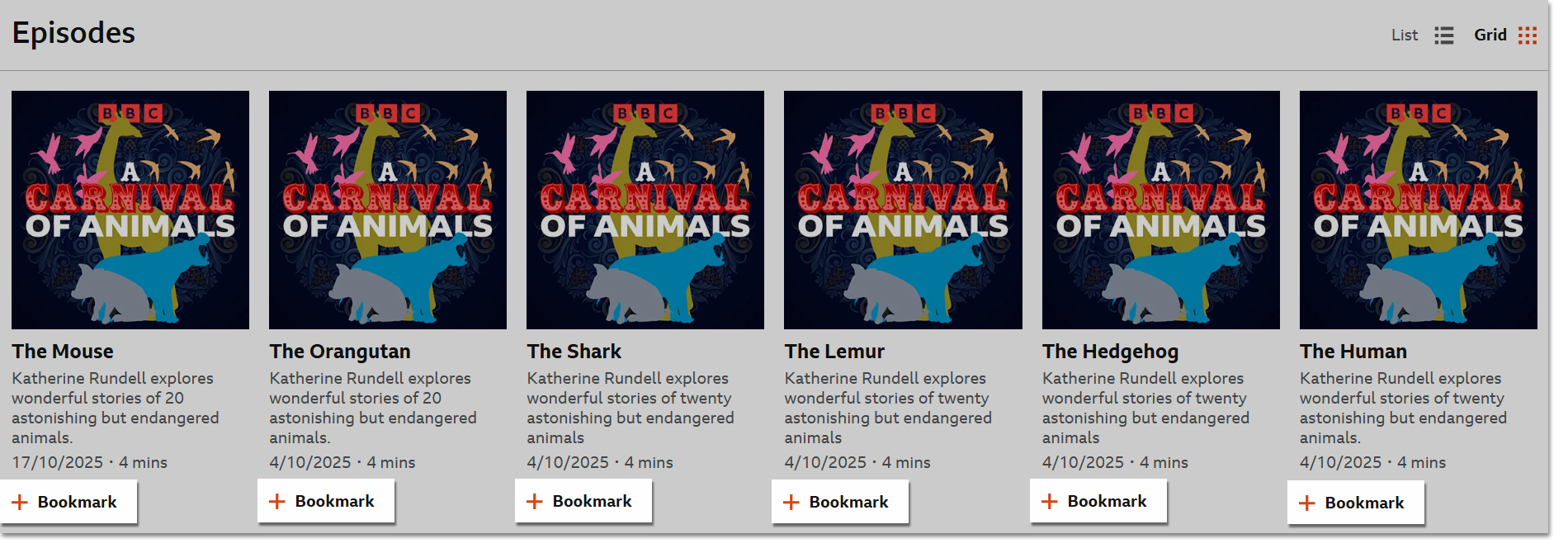
If you'd like to read more about the episode before deciding to bookmark, simply click on the title. On the full episode page, you'll also see the option to bookmark.
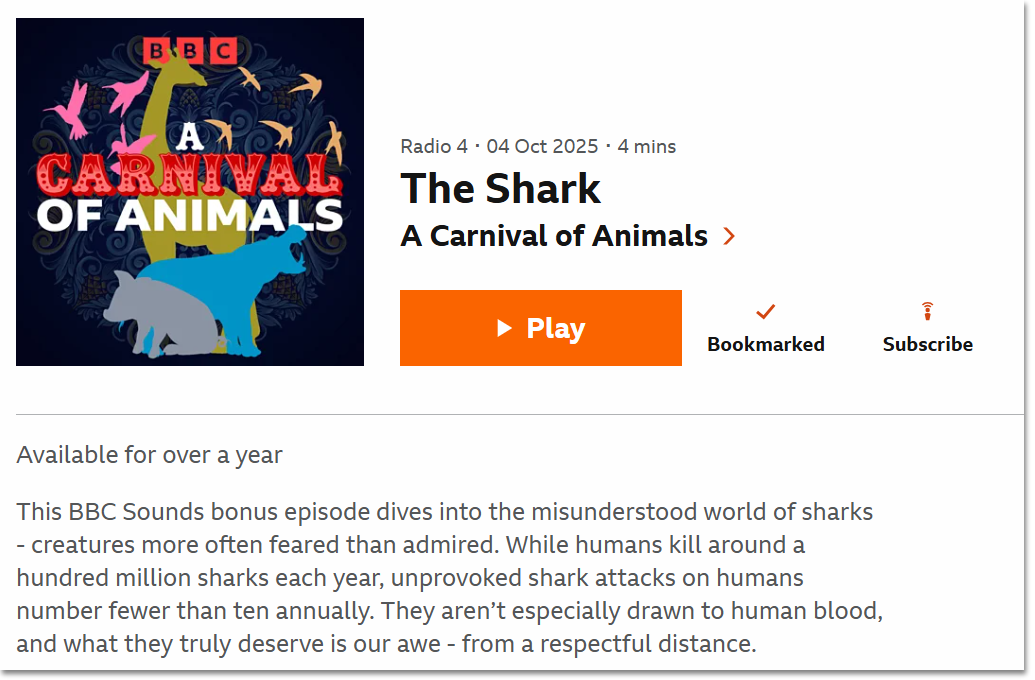
Bookmarked episodes and programmes will appear in the Bookmarks section within My Sounds or at the bottom of the BBC Sounds homepage.
On the mobile/tablet app
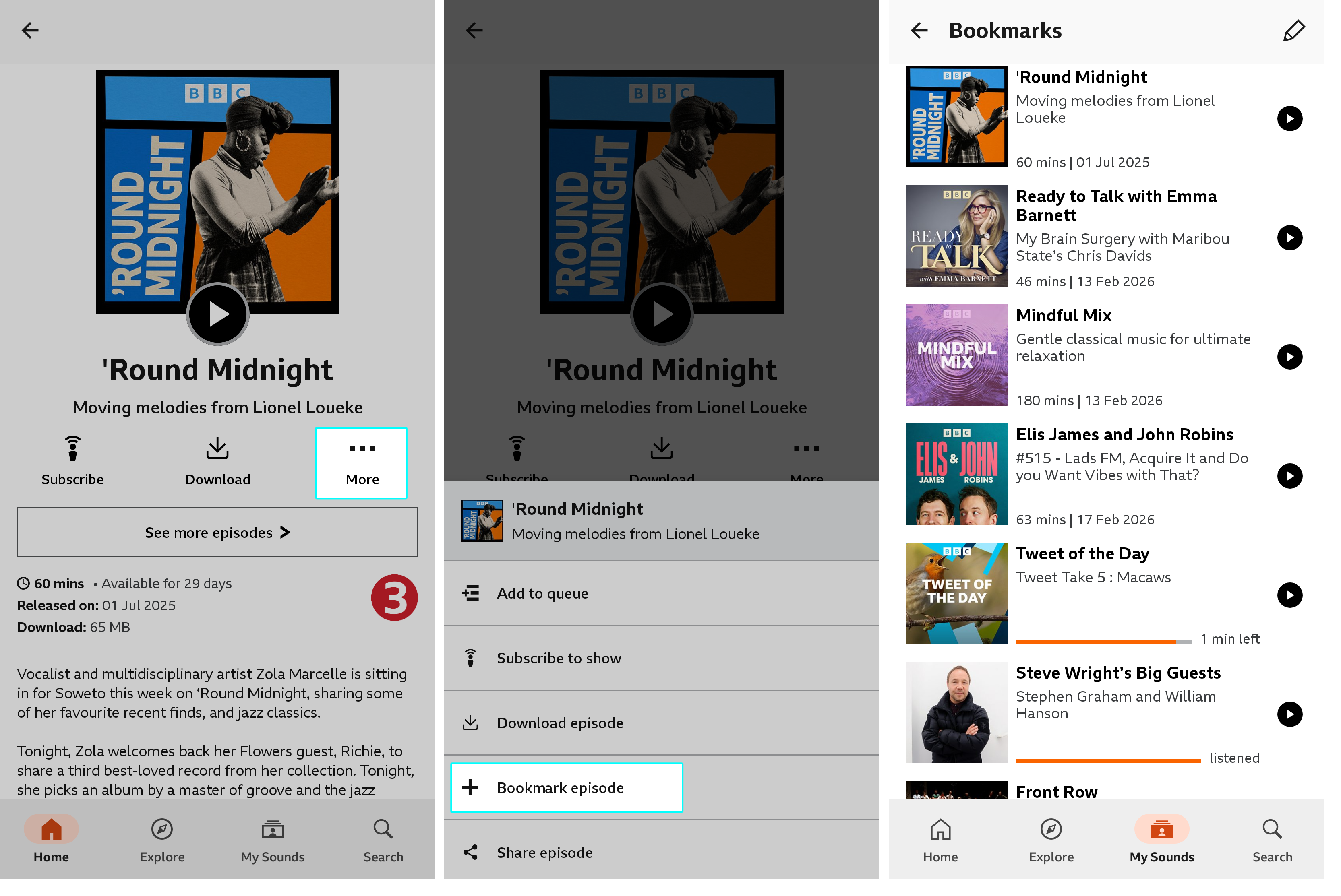
- Tap on the episode you want to add to Bookmarks
- Tap 'More,' then tap 'Bookmark episode'
You'll find the episode in the Bookmarks section of My Sounds. You might need to pull down the screen to refresh the page before the newly-bookmarked programme appears.
On the TV app
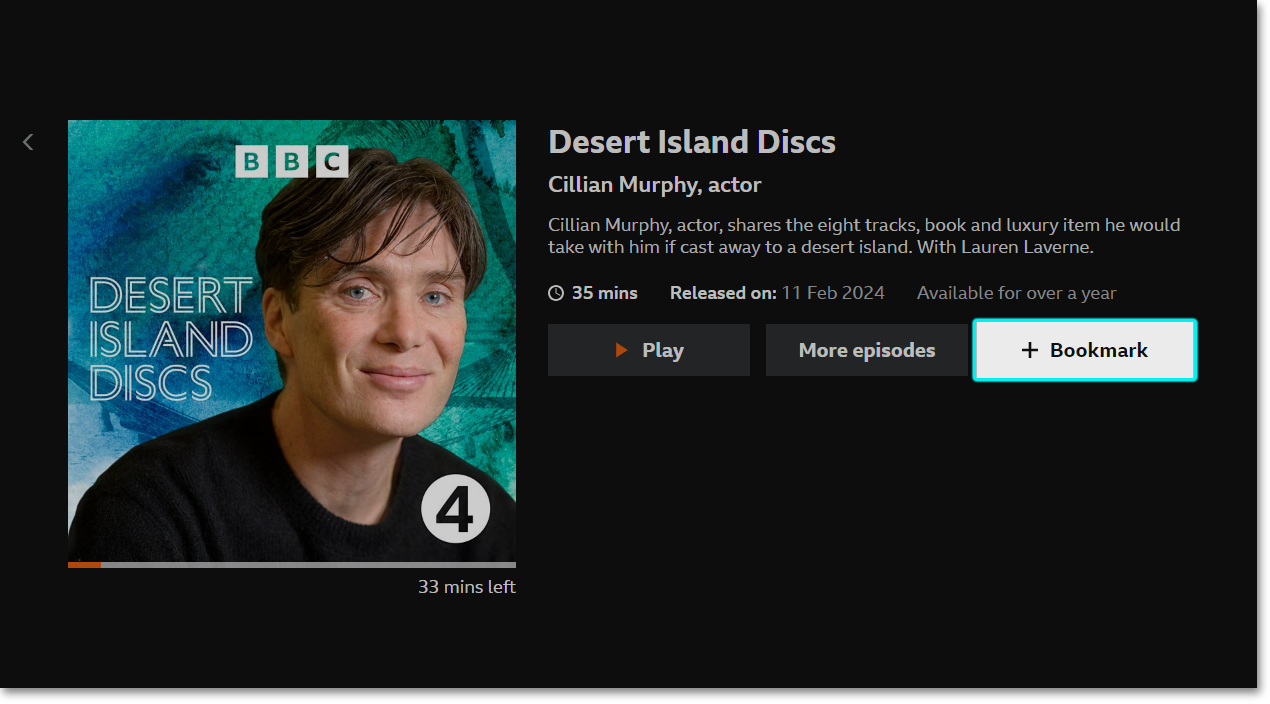
- Select the programme
- Choose 'More Info' next to the episode you want to bookmark
- Select '+Bookmark'
You'll find the episode in the Bookmarks section of My Sounds.
How do I remove a bookmark?
- On the website
- Head to the Bookmarks section of My Sounds or to the bookmarked episode in question
- Select the episode you would like to remove from Bookmarks
- Click on the 'Bookmarked' button to remove the episode
- On the mobile/tablet app
- Head to the My Sounds section
- Tap 'Bookmarks'
- Find the episode you want to remove
- Swipe it to the left, then tap 'Remove'
- You can also tap 'Edit' in the top right corner, then tap 'X' next to the episode you want to remove
- On the TV app
- Open the menu on the left of the screen and go to 'My Sounds'
- Scroll down to the 'Bookmarks' row
- Select the episode you want to remove
- Select the 'Bookmarked' button to remove the episode from your Bookmarks
