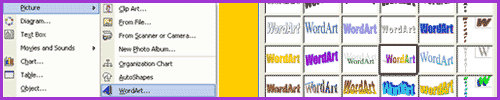
Following advice from their IT teacher, the group open Microsoft PowerPoint by clicking: Once it is open on their PC, they can select a 'New Presentation' and begin designing their theme park poster. The group talk about the best posters they've seen on the street - adverts for music, shops, gigs etc. They all agree that a combination of text and images is the best for this type of poster. They follow these instructions to put their poster together. Adding Text - Select 'Insert', then 'Picture', then 'WordArt'.
- Choose the most appropriate WordArt, then click 'OK'.
- The 'Edit WordArt Text' box will open.
- Type in the name of the theme park.
- Experiment with font styles using the 'Font List'.
- Change the font size using the 'Size List'.
- Make the text bold or italic using the relevant buttons.
Once everyone is happy with the poster title, they click 'OK'. To reopen the 'Edit WordArt Text' box, they simply need to double-click on the title. You can also add text as a 'Text Box', which is better for the other text on the poster, such as the 'Top Five Attractions', the directions to the theme park, and any other information you might want to add. - Click 'Insert' then 'Text Box'.
- Click, or click-and-drag the text box where you want it to be on the poster.
- To make the text box bigger, click on a corner and drag the 'handles' out.
- Click once inside the box and enter in the text.
- Highlight the text and select 'Format' and 'Font' to change the size and style of the text.
- Move the text box into position by clicking and dragging the box.
- To change the colour of the box, select 'Format' and 'Text Box'.
- Experiment with text boxes in different positions until you have all the text information on your poster
Adding Images - Select 'Insert', then 'Picture', then 'ClipArt'.
- Scroll through the options and find a suitable picture for the poster.
- If you have your own image saved as a JPEG, GIF, PICT or TIFF that you want to include, select 'Insert', then 'Picture', then 'From File' - select your image and click 'OK'.
- To alter the size and position of your image, use the 'handles' or click-and-drag.
- To alter the colour, brightness or crop, select 'Format' then 'Picture'.
Change the background colour of your poster or insert a picture in the background by selecting 'Format' then 'Background'.
Click the 'Next' button to see how the group put all this information together in a presentation to the rest of the class.
|