
Before you start.
Make sure you've got:
- A BBC account. You can use your existing one. If you don’t already have one you can register by going to bbc.com/register.
- A second device such as a mobile, tablet, computer or laptop*. This is where you'll enter the code shown on your TV.
*No second device, such as a phone, tablet or computer? Have a look here.
On your mobile, tablet or computer, please sign in to your BBC account on the website to make sure that you know your sign-in details. If you've forgotten your password, you can reset it here: I've forgotten my password.
Ready? Here's what you need to do.
Open the BBC iPlayer application on your TV. You'll see the sign in screen. If you need to change the language, select the speech bubble on the top right.
Select the option you need. The first option is to sign in using the website on your mobile or computer.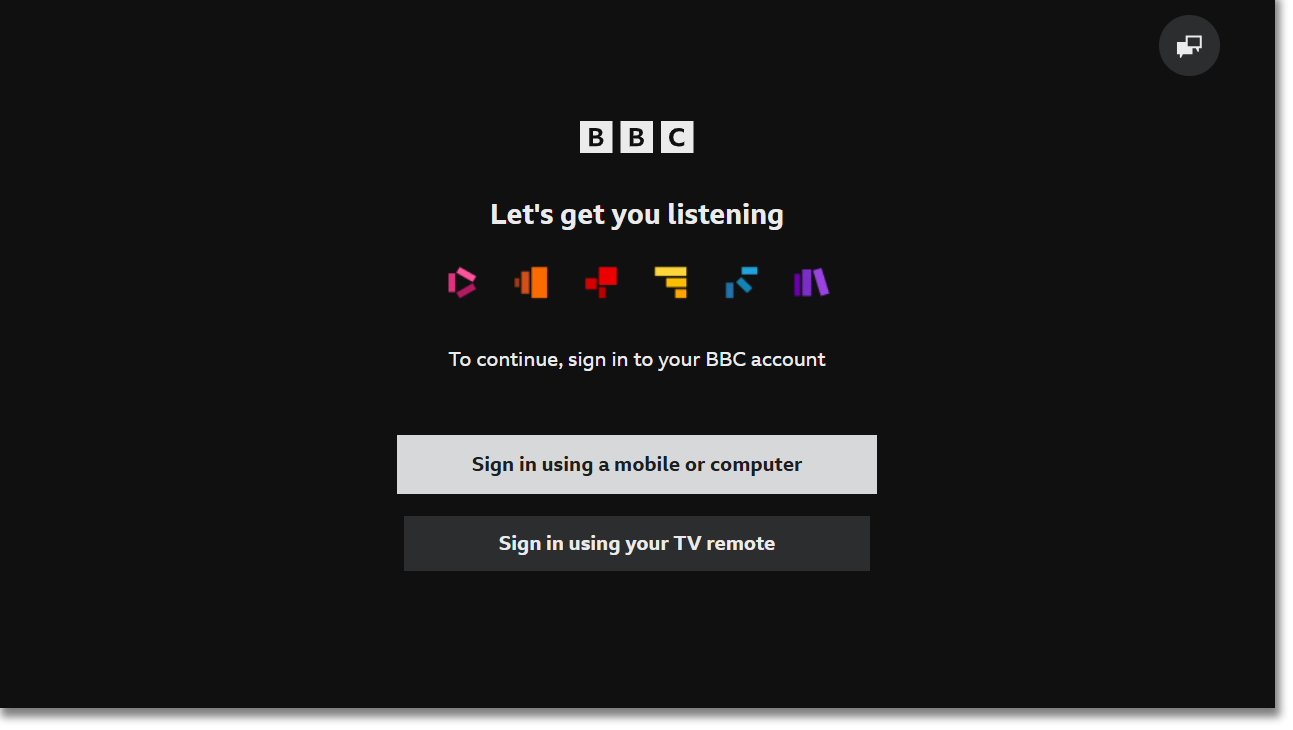
If you're already signed in to an account and want to add another user, head back to the Select who's watching page by selecting the name on the top left of the menu. On the 'Select who's watching' page, choose Add adult.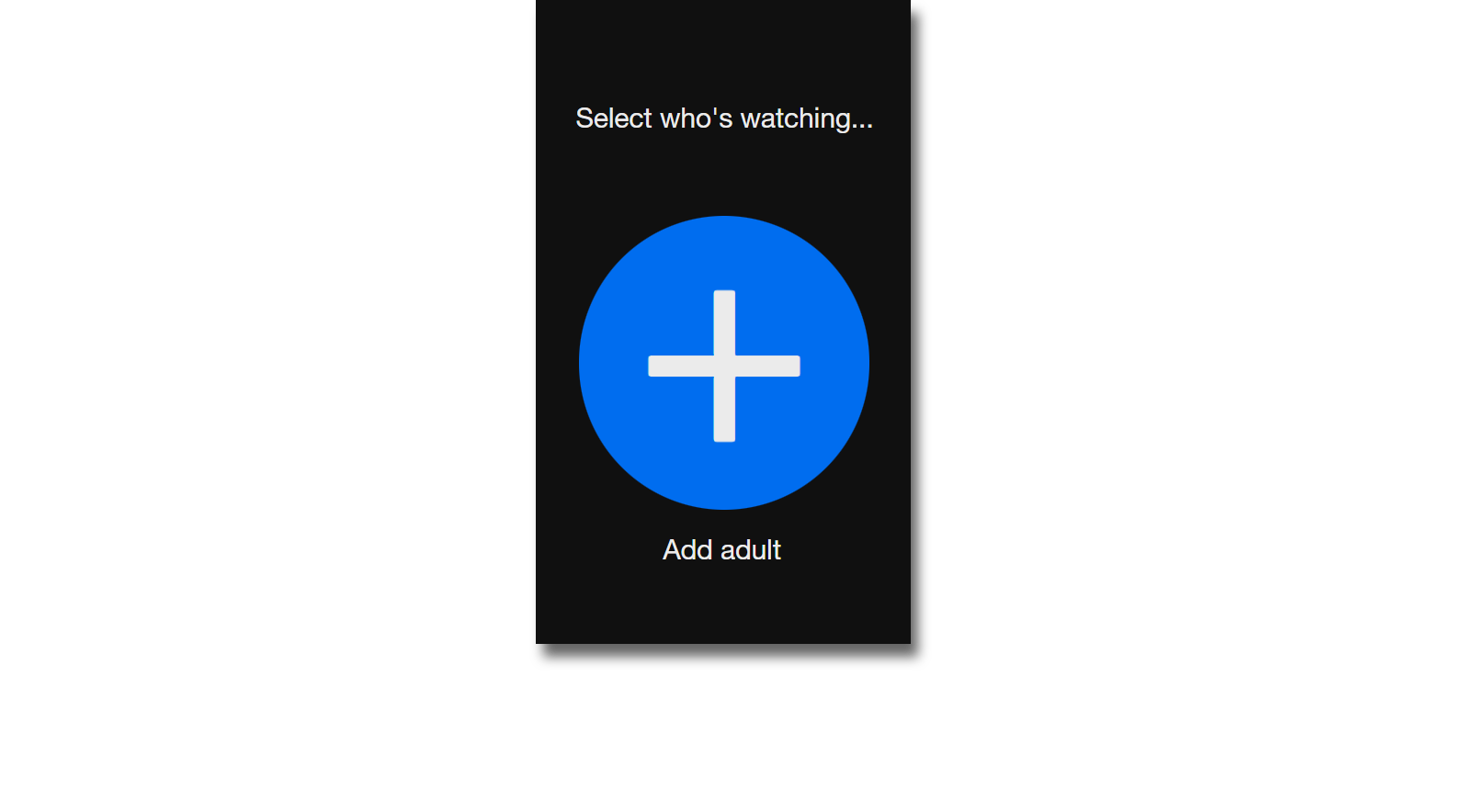
You'll see a screen showing a URL and a six digit code to enter on our website. There's also the option to use the QR code to take you to the correct page: 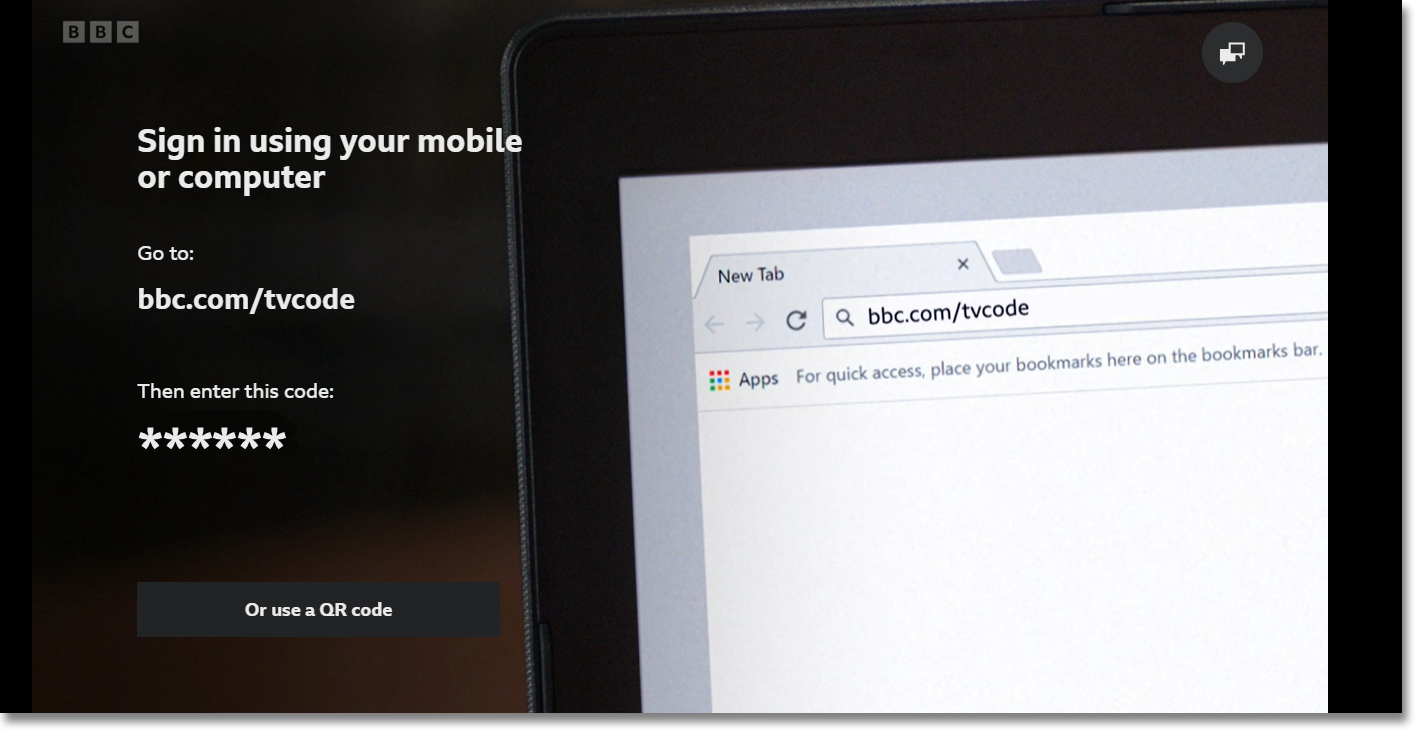
- On your mobile, tablet or computer, open your internet browser and go to www.bbc.com/tvcode. You'll now see a screen asking you to enter the code shown on your TV. Enter the activation code that appears on your TV screen, then select Sign in on your TV.
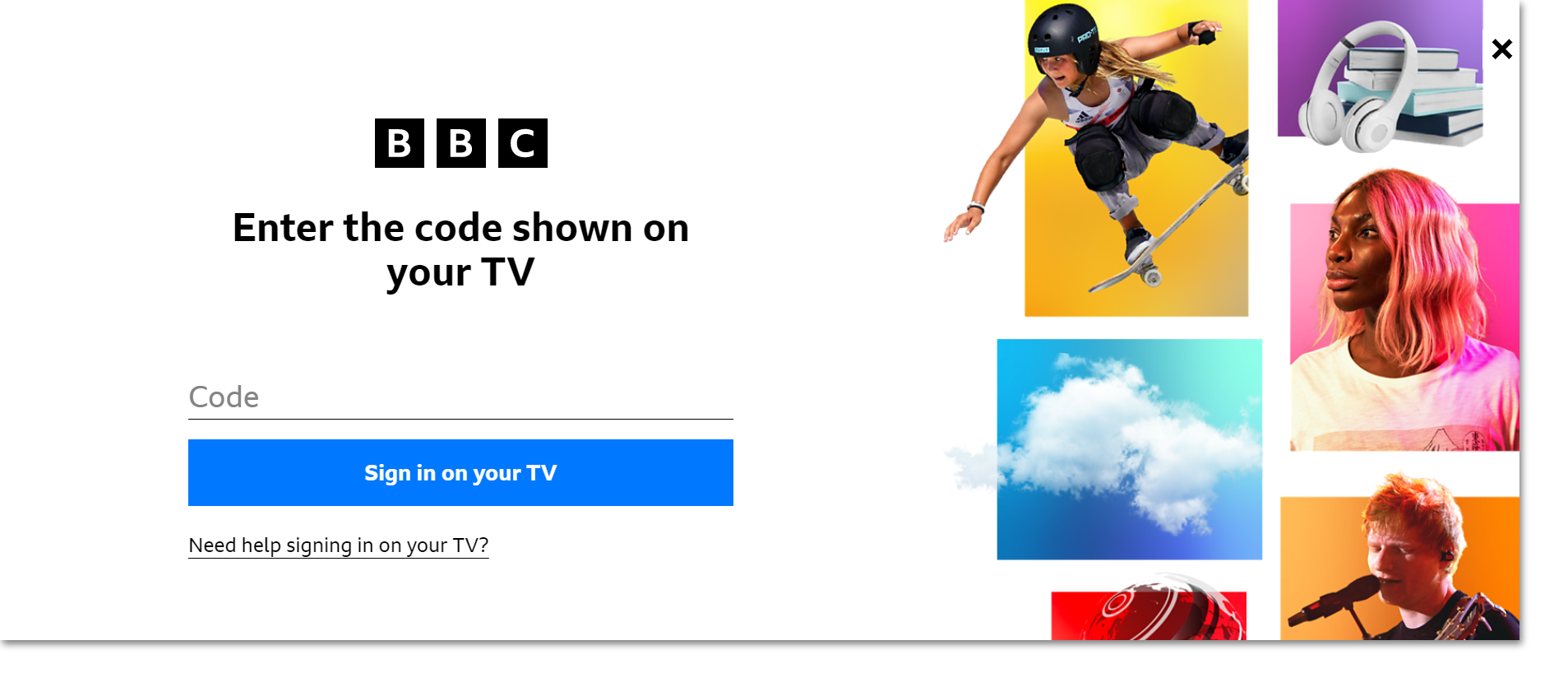
- You'll see a screen asking you to confirm your account details. Enter your email address and password and select Sign in. You'll see confirmation that the details have been accepted.
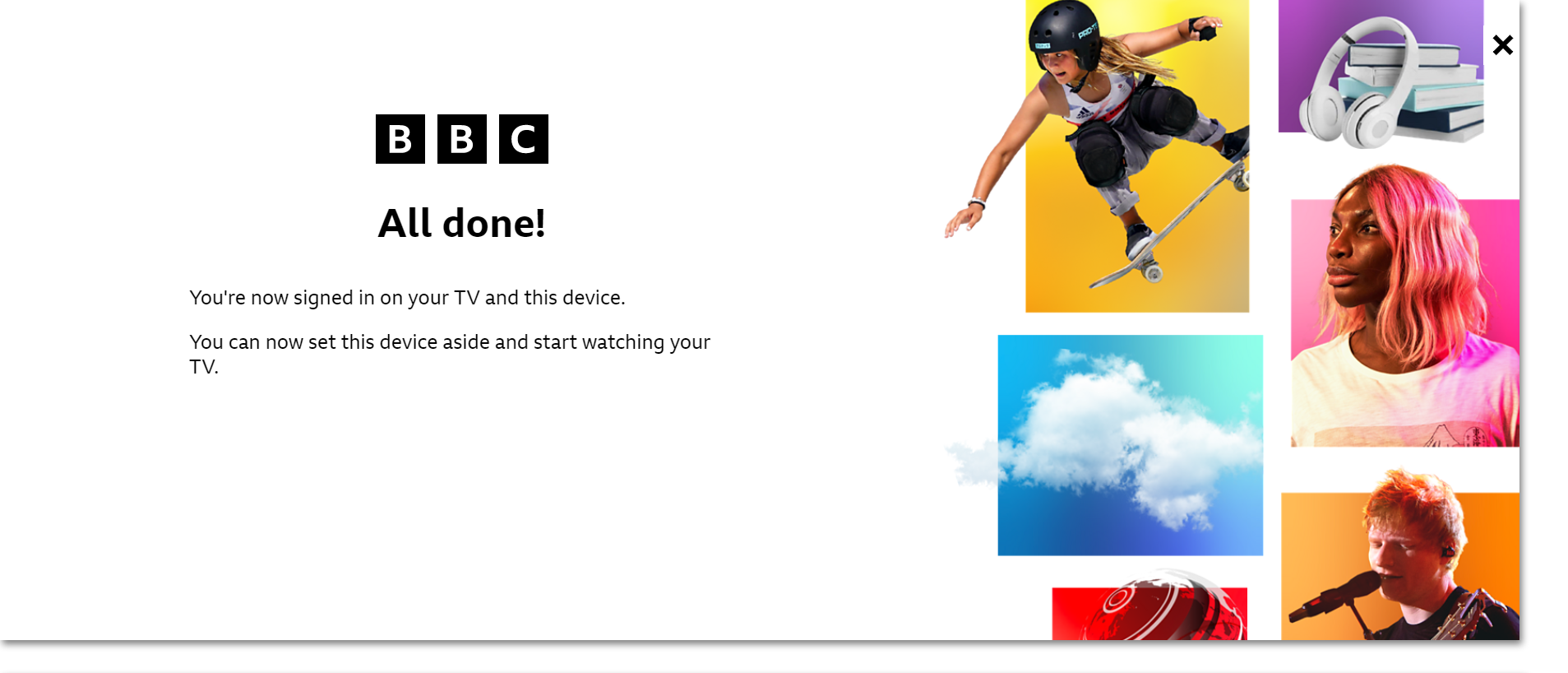
- Wait a few seconds for your TV to catch up, and then you're done! You're now signed in on your TV.
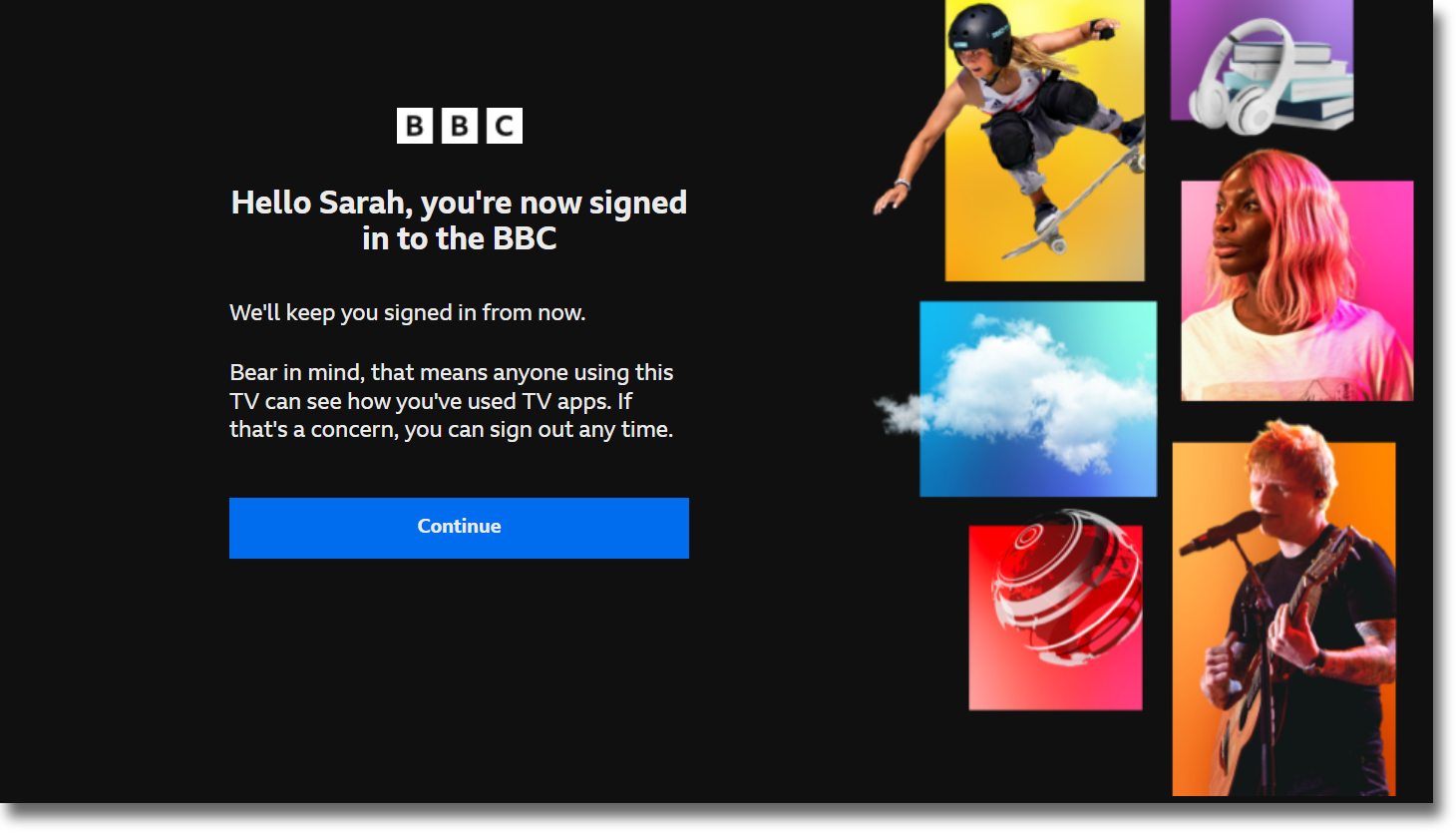
Signing in using your TV remote
When you choose this option, you will be asked to enter your email address and BBC account password.
Here are some things to be aware of:
- If you don’t use the activation code, it will expire after 60 minutes so you'll need to start again.
- Only one person can use the activation code. If two or more people try to use the same code, it won’t work.
- If you would like to add another adult to iPlayer on the TV, they will need to sign into their own BBC account on the website, then follow the TV steps.
- If the website advises that you're signed in, but your TV doesn't change, or it asks you to sign in again, please run through our TV troubleshooting steps as these may help.
- Sign-in isn't available on all TVs. That's because of variations in software and technology. We've got more information about this in the Why isn't sign-in available on my TV? page.
- If you want to sign in on more than one TV, follow the same procedure with those devices. You'll be given a code linked to that particular device. You can sign in to as many TV devices as you need.
What if I don't have a mobile, tablet or computer?
If you are required to sign in to BBC iPlayer on your TV and you don't have a second device, it is still possible to use BBC iPlayer on your TV. You'll need to have access to a telephone (this doesn't need to be a smartphone - a regular telephone will do). Minicom facilities are also available if you have a speech or hearing impairment.
Follow these steps:
- Open the BBC iPlayer application on your TV.
- On the sign in-screen, select 'Sign in using your TV remote.'
- On the bottom right, select 'Use a telephone or minicom'
- Follow the on-screen instructions to get access to BBC iPlayer.
Please note this option is only available for connected TV devices.
