
Where is the Continue watching list?
On the BBC iPlayer website:
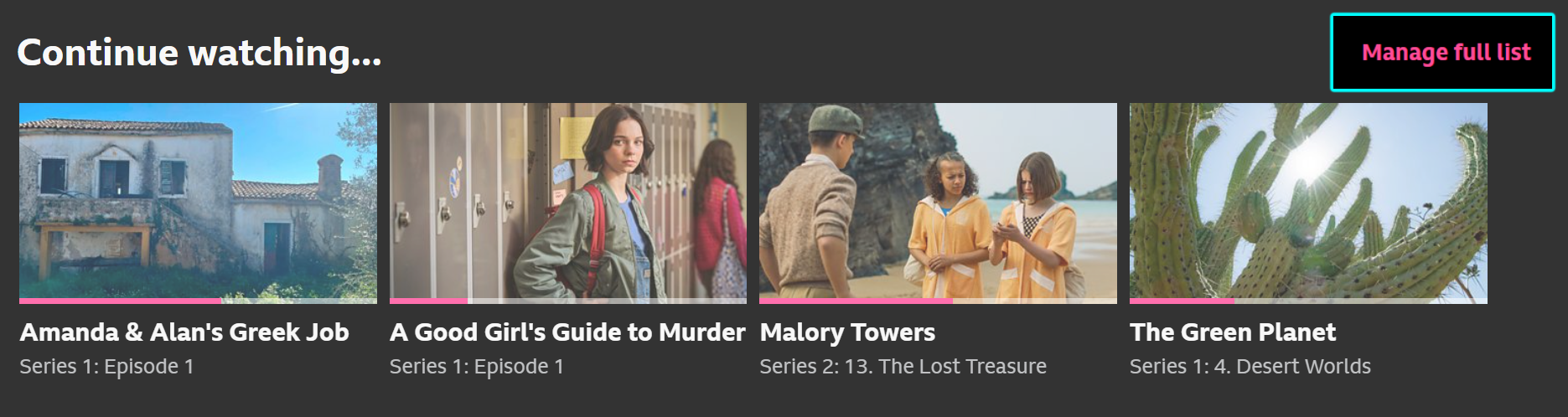
- Scroll down the homepage to the 'Continue watching...' section.
- Click on 'Manage full list' to see all programmes on the list.
On the BBC iPlayer app for mobiles and tablets:
- On the homepage, scroll down to 'Continue watching...'
- You can scroll across for a quick view of your list, or tap on 'Continue watching...' to open the full list
On the BBC iPlayer app for connected TVs:
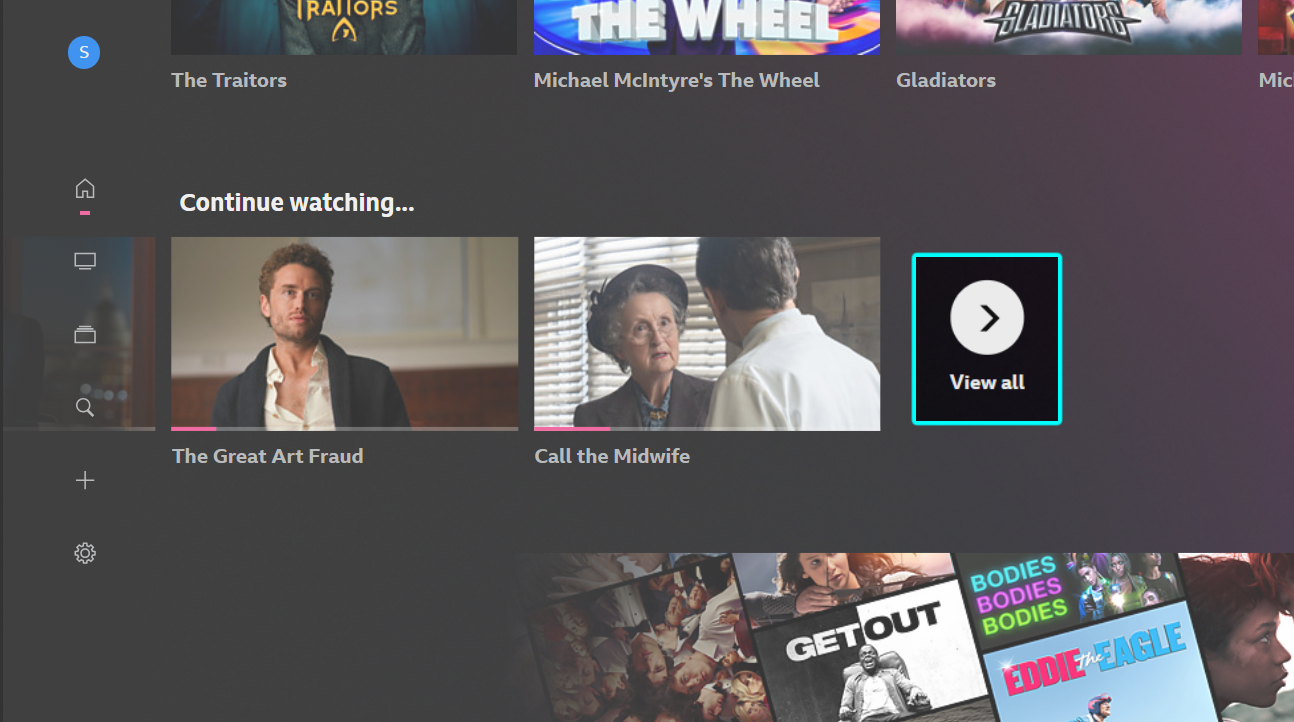
- Scroll down the homepage to the 'Continue watching...' section
- Scroll across to see the latest items, or select 'View all' on the far right to open the full list
Please note, if you've signed in to your TV using a guest profile, you won't have a Continue watching list.
If you can't find a Continue watching list, it's because you haven't started watching anything yet, or you've finished watching all of your available episodes.
How do I add things to my Continue watching list?
Just start watching a programme. If you finish the episode, the next available episode will appear in your Continue watching list either immediately, or as soon as it's available. If you stop part-way through an episode, it'll appear in your Continue watching list so you can pick up where you left off when you're ready.
As long as you're signed in to the same BBC account, you can start watching a programme on one device, like a laptop, and continue watching on any other device you're signed in on, like a tablet or connected TV.
How do I remove things from my Continue watching list?
On the website:
Go to your Continue watching list on the BBC iPlayer website by selecting 'Manage full list' next to Continue watching on the BBC iPlayer homepage, or by going directly to: www.bbc.co.uk/iplayer/continue-watching
2. Click on 'X Remove' next to the episode you want to remove, and then select 'Yes'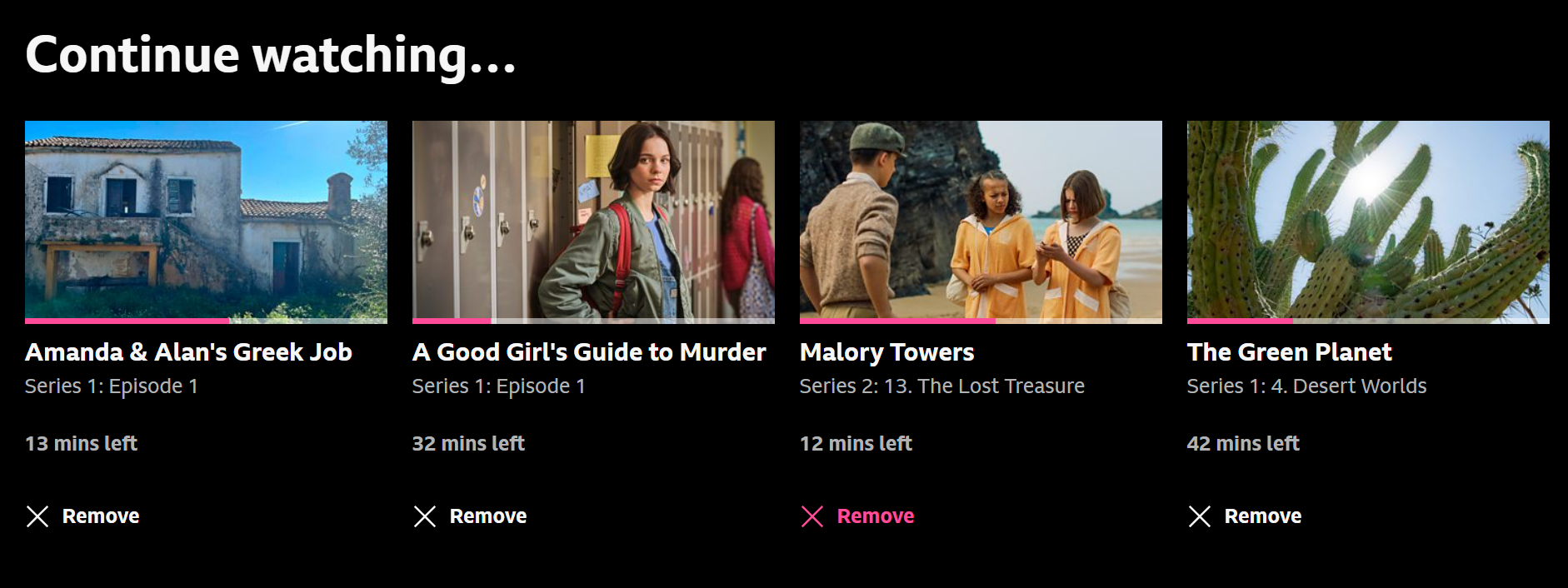
On the TV app
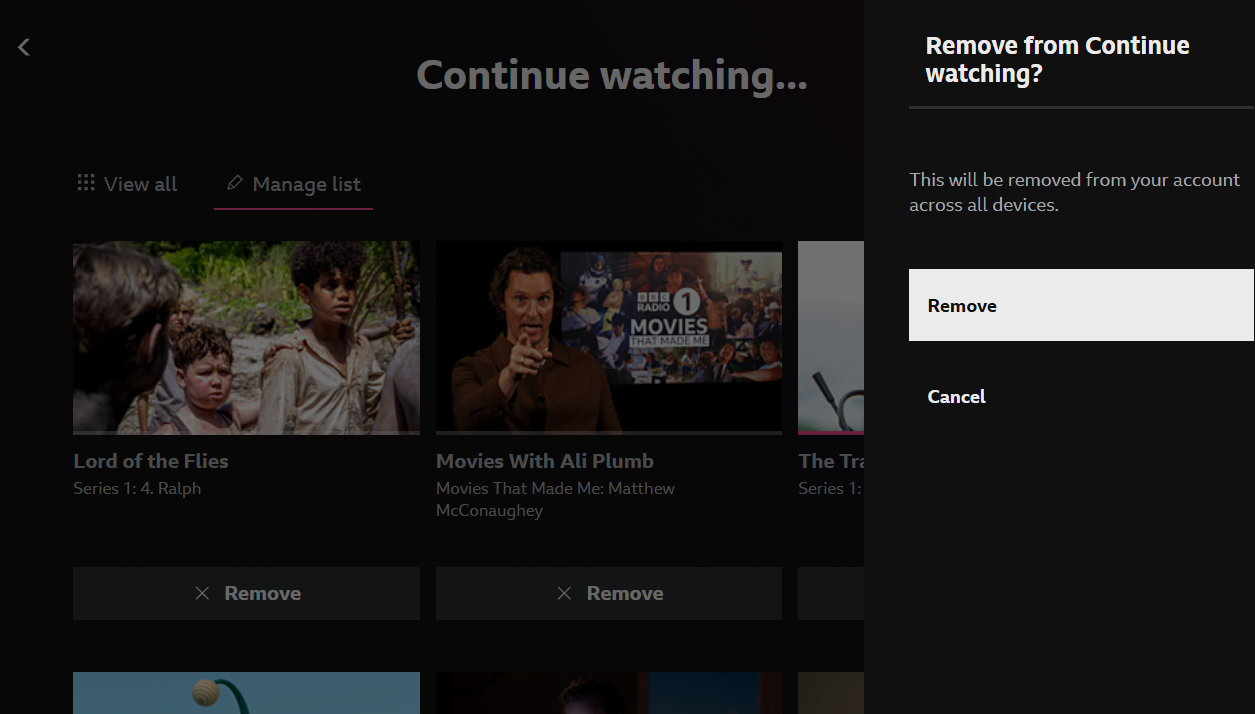
- Find the Continue Watching section on the homepage and scroll right. At the end, select 'View all'
- Select 'Manage full list.' The 'Remove' button will now appear below all of the programmes
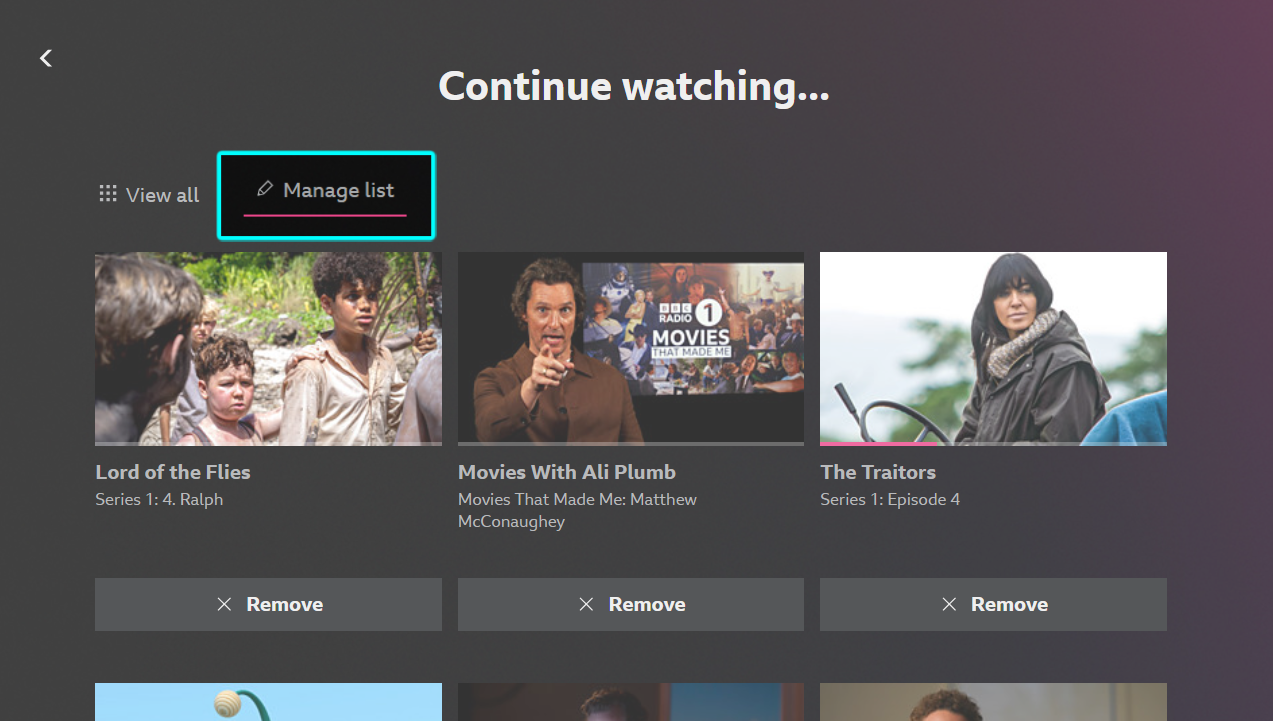
- Select 'Remove' on any of the programmes on the list. You'll be asked to confirm your selection
On the mobile/tablet app:
On the mobile/tablet app, the full Continue watching list can be removed. To remove individual items, you can visit the website on your device browser, or by heading to the TV app, and follow the relevant steps above. You may need to close and re-open, or refresh the app to see the changes.
To clear your full Continue watching history on the app, tap 'Settings' (gear/cog icon on the top right of the home screen), then select 'Clear watch history.' Refreshing the app homepage will update it.
When you remove items from your Continue Watching list, or clear the Continue Watching history, it will update on your account across all devices that you're signed in on. You might need to close and re-open the BBC iPlayer app to see your updated Continue watching list.
