How to view Virtual Replay You need Shockwave plug-in version 10 or later to view Virtual Replay. On the right is what you will see when you first successfully load Virtual Replay, a map of all the Euro 2004 tournament matches. Those matches highlighted in blue have already taken place, those greyed out haven't yet been played. To replay any of the match incidents, first you need to choose a match by clicking on its highlighted link. When you have chosen a match, the first incident will load. A progress bar will appear while it is loading. Those on slower modem connections may experience a wait of around 2 minutes before the incident fully loads. | 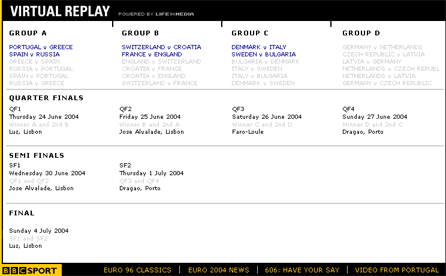 |
|
 |
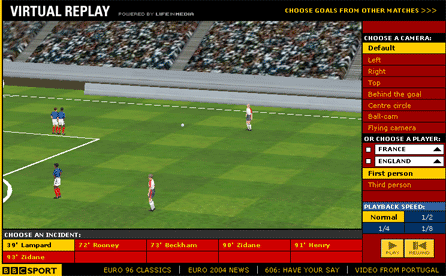 | How to Watch an Incident To play back the incident, click on the 'Play' button. To stop and rewind, click on the 'Rewind' button. You can change camera angle or player perspective at any point during the playback of an incident. Simply click on your chosen angle in the navigation on the right, or select a player from one of the two team lists. You can then choose first or third person perspective for your chosen player. You can also change the playback speed by choosing between the options above the play and rewind buttons. GO TO VIRTUAL REPLAY >>> | |
|
Quick guide to cameras Default: Main TV camera view from the stadium roof
Left: View from the attacking team's left wing
Right: View from the attacking team's right wing
Top: Aerial view from directly above the ball
Behind the goal: Watch through the net!
Halfway line: View from the middle of the pitch
Ball-cam: Stand by to kicked around!
Flying camera: Follow the ball around the pitch
First person: View from the selected player's eyes
Third person: Watch the selected player during the incident | 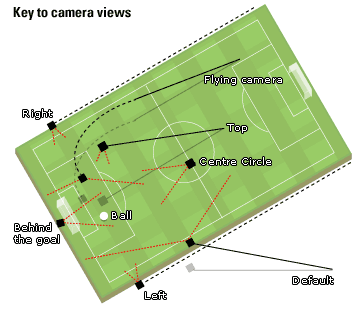 |
|
Downloading and Installing the Shockwave Player
You can download and install the latest version of the Shockwave plug-in from Macromedia. This page detects the browser you are using and downloads the appropriate Shockwave installation file for your system.
Can't download Shockwave player
Your browser may have a Shockwave player already installed. This
may be damaged and could prevent you downloading the latest player. This can be
fixed by uninstalling the old player.
> Find an uninstaller for Windows here
or for Mac here.
> Remove the player and then re-install it.
> For more detailed information go to Webwise download guide.
Shockwave player isn't working
If your Shockwave player doesn't work after installation, it
may be because:
> You have more than one copy or version of your browser
on your hard drive. Make sure the plug-in is installed in the copy or version
you are using.
> You're not using the right plug-in for your system and
browser. A 16-bit browser will not support a 32-bit version of the plug-in, and
vice versa.
> You have a version of the Shockwave plug-in that is no
longer supported. Uninstall the old one and install a new version, and check that
your browser can support this newer version.
> If none of this works, detailed help for both Windows and Mac users is available from Macromedia.
For the BBC's guide to plug-ins go here.