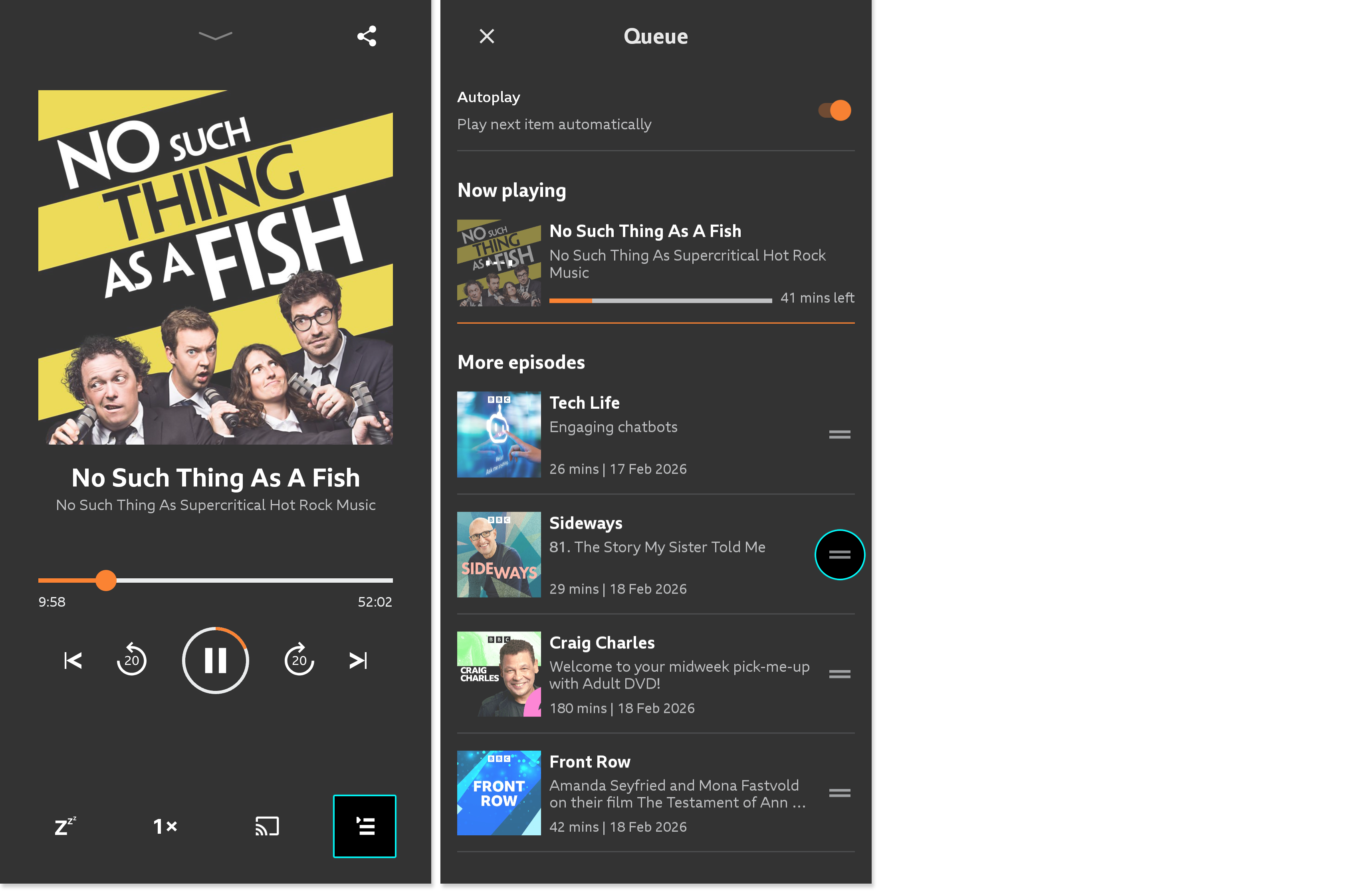
Yes you can.
Switch on autoplay by going to Home > Settings (cog icon on the top right), then we'll autoplay the next programme in your Downloads list. You can also switch on autoplay in the play queue menu.
In the Downloads list, found by going to My Sounds > Downloads, you can use the 'Sort' icon (arrows) at the top of the page to sort your downloads by the date the were added, their expiry or A-Z.
Use the play icon next to the download you'd like to start listening to.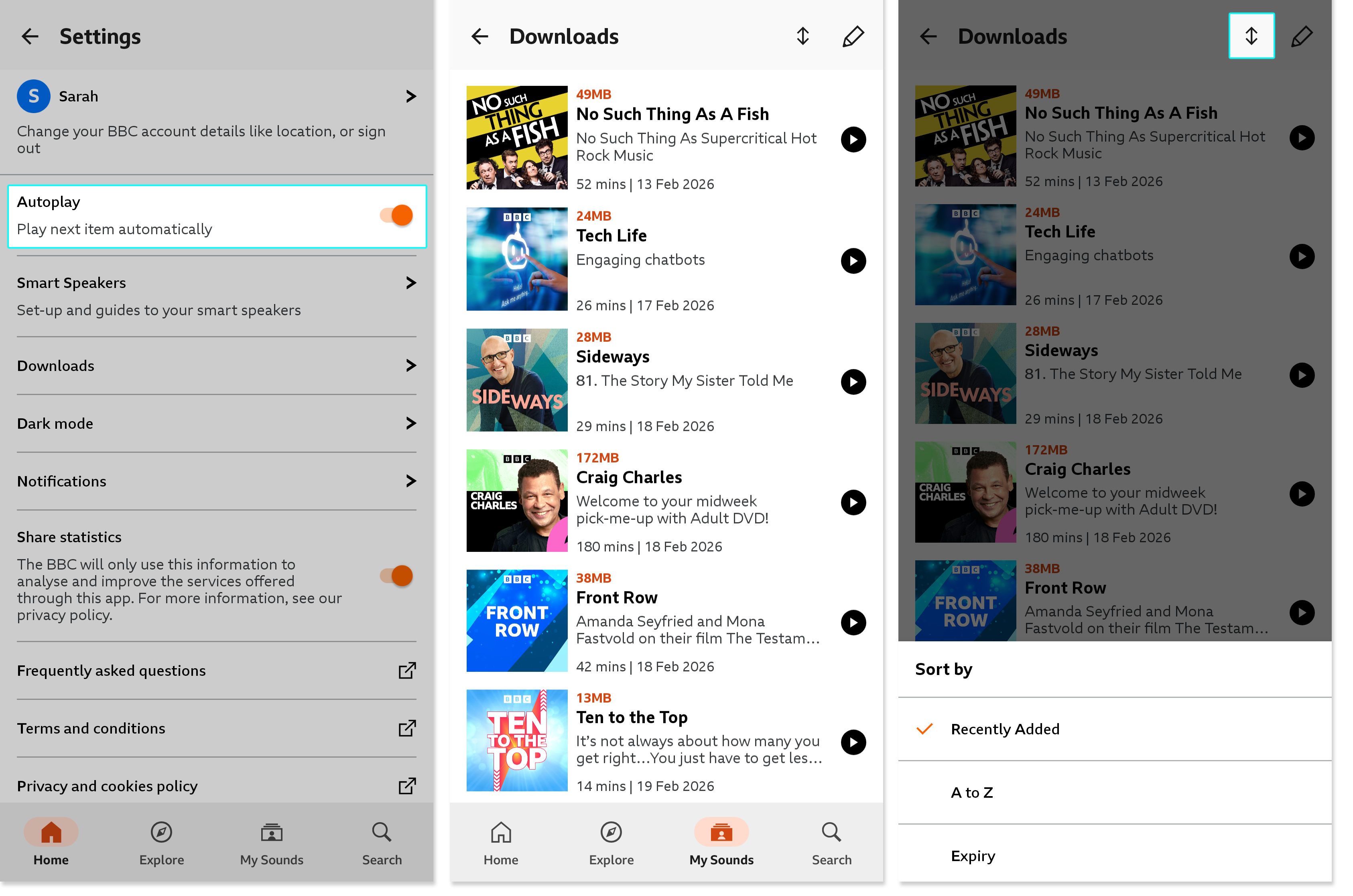
When the current programme comes to an end, the next programme in your list will autoplay.
Useful tips
- If you change the list order (the example above is sorted by Added), the playback order will also change to reflect that.
- You can move programmes up and down the queue using the icon to the right and dragging the programme up and down the list.
- If you're connected to the internet and press play anywhere outside of the Downloads page (by selecting the image or programme description, for example), BBC Sounds will autoplay the next episode in the series regardless of whether you've downloaded it. So make sure you're pressing the play button in the Downloads page to autoplay your downloads only.