BBC Connect is a secure way for you to access some BBC Systems (such as the Freelance Payment Portal, the Artists and Contributors Portal and the Vendor Portal). You will set up an account to use BBC Connect.
You will need to use an additional security step to access BBC systems. An example of a security step might be a code from an app, or a code from an email.
Accessing the system for the first time
You will receive an email from bbc.connect@ccs.bbc.co.uk asking you to activate your BBC Connect account to access the relevant BBC system.
For security awareness, always make sure the email you have received comes from bbc.connect@ccs.bbc.co.uk and that the URL has https at the start and contains accounts.ondemand.com.

- Click the link to activate your account within the email.
If you don’t see a clickable link in your email, then you may see the link in a code text format like the below screenshot. Copy this from your email into your browser address field.

Depending on the BBC system to which you require access, you will either need to authenticate using code you receive via email or a code generated by an authenticator app.
Authenticate via email
The following steps outline the process with authentication via email.
- Click Enable Method to authenticate via email.

- Enter the 8-digit code from the email you’ve received and click Continue.You will have 10 minutes to use the code before it expires.

- Set your password on the Activate Your Account screen.
Your password must be between 8 and 255 characters long and include one of each of the following:
- Uppercase letters
- Lowercase letters
- Numbers
- Symbols
If the password and re-enter password field match and have followed the password rules, the boxes will turn green.
Click Save to set your password.
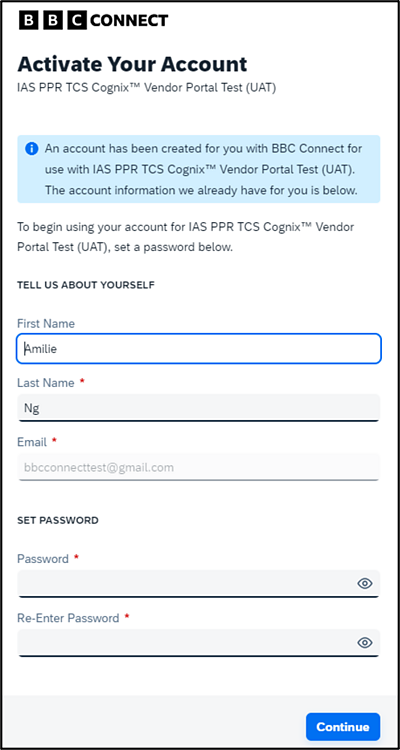
Your account is now successfully activated.
- Click Continue.

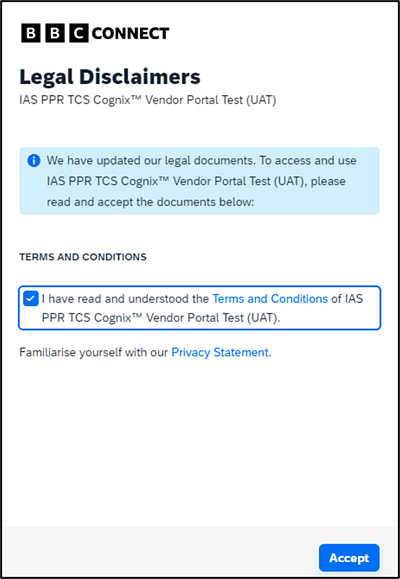
- You will be asked to accept some legal disclaimers/Terms and Conditions.
- After clicking Accept,you will be taken to the portal’s sign in page.
Authenticate via Authentication App
For this method of authentication, you will use an authenticator app on your mobile phone.
BBC recommends using the ForgeRock app, which aligns to BBC Login, used for accessing other BBC systems. However, there are several authenticator apps you can use for this, such as Google Authenticator and Microsoft Authenticator.
It is also compatible with the Apple IOS authentication process, if you wish to use this.
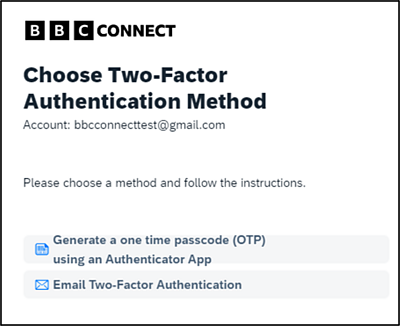
- Select Generate a one time passcode (OTP) using an authenticator app.
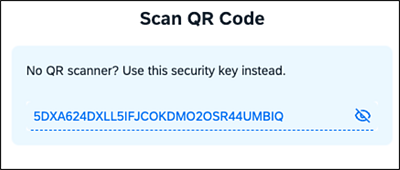
You will be shown a screen with a QR Code to scan with your authenticator app.
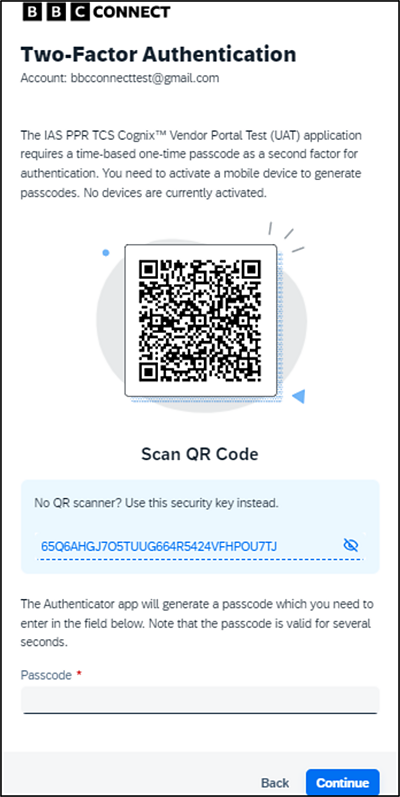
- Scan the QR Code with your app or enter the security key instead.
- Enter the 6-digit passcode that the app has given to you and click Submit.
You have now successfully registered to use your authentication app when logging in to the BBC system in the future.
Entering an incorrect password
If you enter your password incorrectly 3 times, you will receive an email to say your account has been locked.
You can either wait 1 hour to try again if you know the password or reset your password following the link in the email.
Forgot your password?
You can request to reset your password 3 times in 24 hours.
If you request further password resets, it will lock your account for 1 hour.
- Click Forgot Password? on the sign in page.
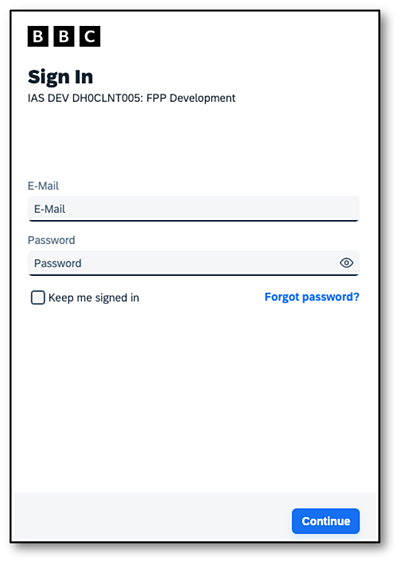
- On the email you receive, click Reset your password (this link is valid for 2 hours)
- Set a new password and click Save.
New mobile device/new authenticator app
If you have a new mobile phone or wish to change the authentication app you use as your security step, you can update the details in your profile in the section Multi-Factor Authentication.
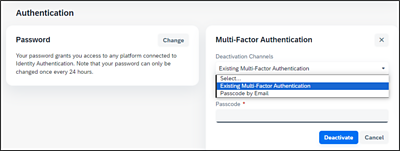
- Under Multi-Factor Authentication section, where it says TOTP Two-Factor Authentication, click Deactivate.
- Choose to either deactivate using a code from your existing phone and app or using passcode by email (if you no longer have access to your old phone).
- After selecting the method, you wish to use, enter the 6-digit code that was displayed in your app or sent to you via email and click Deactivate. This removes your previous authentication.
- When you next log in, the system will prompt you to re-activate a device and authenticator, following the same process as accessing the system for the first time.
What Data is held by BBC Connect?
View your profile to see your data and download the information held.

Further Support
If you need to speak to someone about using BBC Connect to access BBC systems, please contact the following teams:
- For Contributor payment queries, please email bbc.contributorpayments@bbc.co.uk or call us on 0800 0581870.
- Any queries in relation to the Freelance Payment Portal please use the webform on the BBC Freelancer website.
