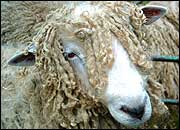
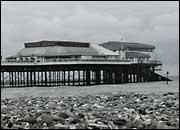
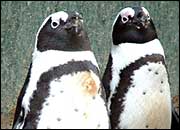
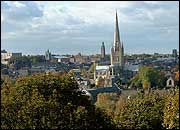
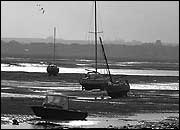
We've gathered together a selection of shots from across Norfolk and made them into wallpaper for you! These pictures have been kept at high quality so you can enjoy them at there best, so please be a little patient as they take that bit longer to download. Do you have picture that you'd like to contribute to our wallpaper selection?
E-mail it as a high quality jpeg to norfolk@bbc.co.uk - it must be at least 1024x768 pixels and remember to tell us who you are and where the picture was taken. By contributing material to the BBC Norfolk website, you agree to the BBC's standard Terms and Conditions relating to user contributions.
Installing Wallpaper Windows 1. Find out how big your screen is. Shrink your browser window and click with the right mouse button on an empty piece of desktop. A pop-up menu should appear. Select 'Properties'. A box will appear with tabs across the top. Select the 'Settings' tab and on the right-hand side of the box, it should say 'Desktop Area' and tell you how big your screen resolution is. 2. Come back to this webpage. Click on the PC link above that is the same size as your screen. For screens bigger than 1024x768 use the 1024x768 option. The picture should now load in your browser. 3. Click on the picture with your right mouse button and a menu will appear. Select the 'Set As Wallpaper' option. 4. Click on the 'back' button in your browser to return to this page. Mac OS 1. Find out how big your screen is. Click on the Apple menu, then select 'Control Panels > Monitors & Sound'. A window will appear telling you how big the resolution of your screen is. 2. Come back to this webpage. Click on the link above that's the same size as your screen, hold the mouse button down so that a menu appears. Netscape users select 'Save this link As...' and Internet Explorer Users select 'Download Link to Disk'. Save the file to your desktop. 3. Move the downloaded wallpaper file (?????.jpg) into your wallpapers directory. First time users make a directory at the top level of your hard disk called 'Wallpapers' and move it there. 4. Click on the Apple menu, then select 'Control Panels > Desktop Pictures'. A window will appear. On the left-hand side hit the 'Picture' button. On the right-hand side hit the 'Select Picture' button. If you have a 'Remove Picture' button instead of a 'Select Picture' button hit this and your current desktop wallpaper will be removed, the 'Select Picture' button will now appear. A file selector box will appear, choose your wallpapers directory and then the wallpaper file (??????.jpg). Hit open followed by 'Set Desktop'. |